Ranked #1

SnapDub
Automated stream pipeline
Starter $14.99 per month
- Best for
- clippers and creators pulling many clips from long streams
- Free plan
- Yes, 500 credits at signup, no card required
- Rubric
- 8.9 / 10
Nine AI clipping tools compared on moment detection, caption accuracy, reframing and price, so you can pick the one that matches your posting schedule and budget.
 Prices checked November 25, 2026
SnapDub is the best AI clipping software for clippers and creators pulling many clips from long streams. OpusClip suits creators and teams that want polished clips with minimal manual editing, and Vizard fits creators who want a generous free tier for streams and webinars. That is the short answer as of November 2026. This list ranks nine tools on clip detection, caption quality, reframing, workflow and price, and each entry names the buyer it fits and the buyer who should look elsewhere.
Automated stream pipeline
Starter $14.99 per month

Virality scoring
Starter $15 per month, monthly billing only

Free monthly credits
Creator $14.50 per month billed yearly
Disclosure for this page: All 9 tools here are unpaid editorial picks. The position of a paid listing can be part of what the vendor pays for. How we handle paid listings.
| Tool | Best for | Free plan | Actions | |||
|---|---|---|---|---|---|---|
| 1 | SnapDub | clippers and creators pulling many clips from long streams | Starter $14.99 per month | Yes | ||
| 2 | OpusClip | creators and teams wanting polished clips with minimal manual editing | Starter $15 per month, monthly billing only | Yes | ||
| 3 | Vizard | creators wanting a generous free tier for streams and webinars | Creator $14.50 per month billed yearly | Yes | ||
| 4 |  Submagic | creators focused on caption styling and on-screen engagement | Starter $12 per month billed yearly | No | ||
| 5 | Klap | solo creators wanting a fast, uncluttered clipping workflow | Basic $14.50 per month billed yearly | No | ||
| 6 |  quso.ai | brands wanting clipping inside a broader AI content suite | See website | No | ||
| 7 |  2short.ai | YouTubers wanting fast clips from talking-head videos | Lite $9.90 per month | Yes | ||
| 8 |  GetMunch | social media managers needing platform-safe clips with trend data | See website | No | ||
| 9 | CapCut | creators wanting a free full editor with clipping built in | See website | Yes |
We rank these nine tools by how well each one serves a specific buyer, not by a single headline number. That means the order is editorial: the entry at the top is the one we would hand to a clipper running a heavy stream schedule, and each following entry sits where its strengths matter most for the buyer it names. If an entry carries a Featured label, that placement is paid. Featured entries go through the same scoring below and get the same kind of blunt cons as everything else.
Every tool was scored against five criteria, each weighted: clip detection (25 percent), caption quality (20 percent), reframing quality (20 percent), workflow and publishing (20 percent) and price and value (15 percent). We scored on the behavior each vendor describes and on how the product presents itself to a new user. We did not run a stopwatch test or a blind caption audit for this update.
Prices, plan names, free allowances and trial terms come from vendor pricing pages checked on 2026-11-25. Where a vendor publishes no self-serve price, the entry says pricing is on the vendor site and gives no number. Where a page showed conflicting figures, we report the number we could confirm and flag the discrepancy inside the entry.
Credit allowances change often, so recheck the signup allowance and the renewal rate before you commit a posting schedule to any of these tools.
The full process, including how we handle corrections, is on the methodology page. Paid listings follow our advertising disclosure.
| Criterion | Weight | What we check |
|---|---|---|
| Clip detection | 25% | How well the tool finds self-contained, postable moments inside long recordings without heavy manual scrubbing. |
| Caption quality | 20% | Accuracy of word-level timing and how usable the caption styles look in a vertical feed. |
| Reframing quality | 20% | Whether faces, speakers and on-screen action stay in frame after the crop to 9:16. |
| Workflow and publishing | 20% | How short the path is from upload to exported or scheduled post, including team review steps. |
| Price and value | 15% | What the entry price buys in credits or seats, and whether the free allowance supports real evaluation. |
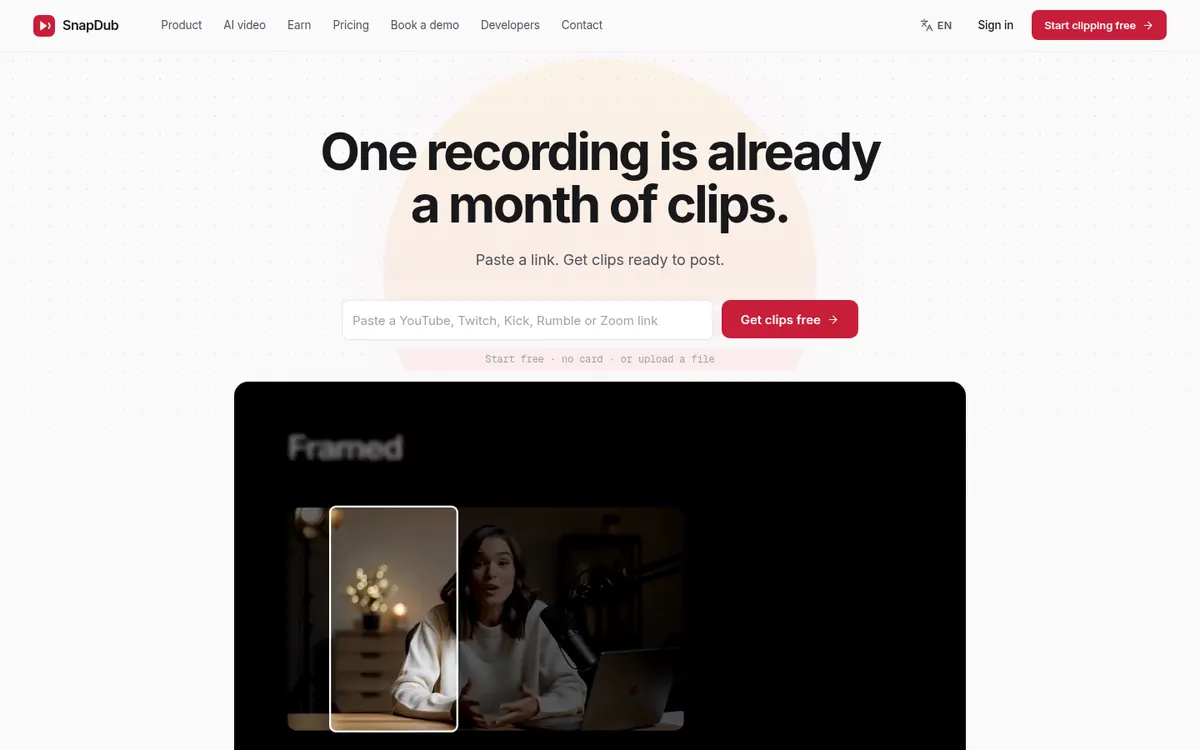
SnapDub wins on volume: automated import, gaming-tuned reframing and direct posting make a stream schedule manageable.
SnapDub is built for volume. Paste a Twitch, Kick or YouTube link, or upload a file, and it detects moments, cuts them and reframes to 9:16 with face tracking. If the source has a facecam over gameplay, it can lay out both regions instead of cropping one away. Captions are animated in multiple styles and languages, and the tool writes titles, hashtags and caption text so you are not starting from an empty field.
What separates it from most of this list is auto-import. Connect a channel and it clips every new stream or video, then pushes output to TikTok, Instagram, YouTube and Facebook on your schedule. There is a REST API for clipping inside your own application, plus ChatGPT and Claude MCP integration so a chat assistant can trigger posting. For a clipper running a nightly stream, that removes the upload step entirely.
Pricing runs Starter at $14.99 per month, with Pro and Business above it and two months free on annual billing. There is no free trial. Instead you get 500 credits at signup with no card required, which is a real allowance for judging quality but runs out quickly once you post on a fixed schedule. The free allowance is credit-based rather than a permanent unlimited tier.
The framing is tuned for gaming and facecam content, which is a strength on stream archives and a limitation elsewhere. Talking-head interviews and solo explainers give the reframing less to work with, and a caption-first tool may fit those better. Pick SnapDub when throughput and hands-off publishing matter more than template variety.
You stream regularly and want clips found, cut and posted without touching a timeline.
Your source is mostly interviews or explainers where the gaming layout adds nothing.
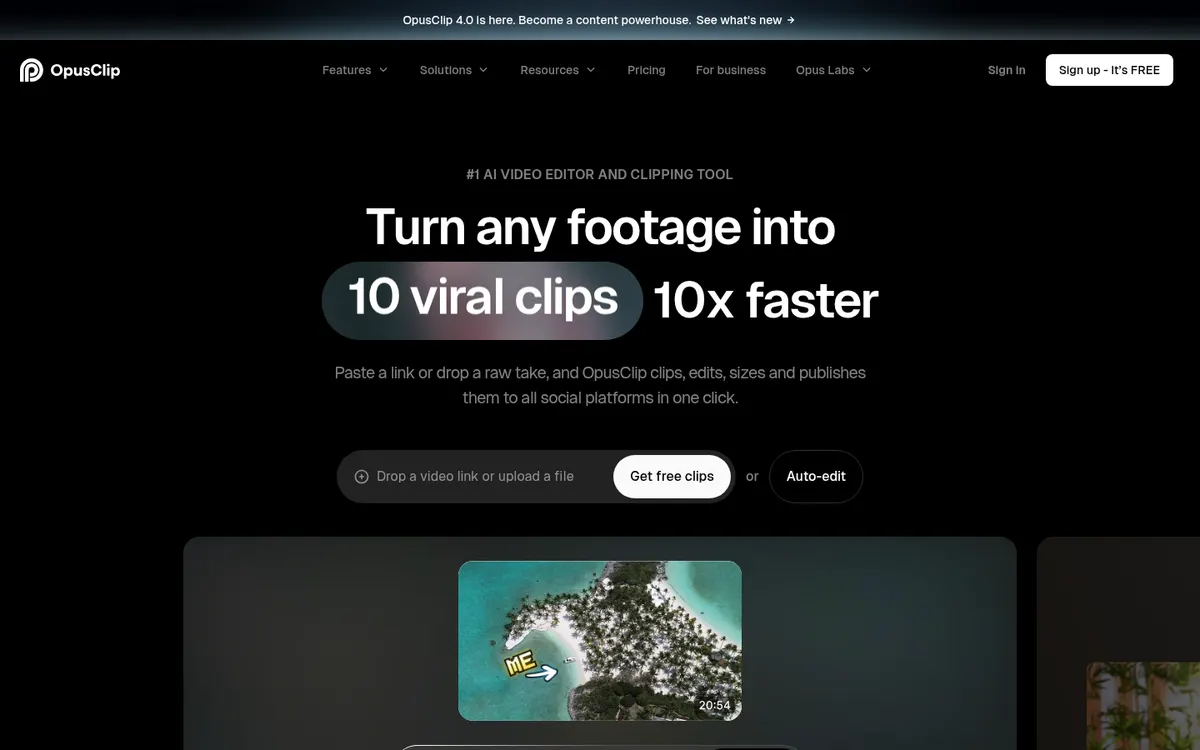
OpusClip's virality scoring and caption styling make it the easiest pick for teams that want reviewable, polished clips fast.
OpusClip starts with scoring. It detects candidate moments, ranks them by predicted virality and shows a triage view that puts top-scoring clips first. That single design choice changes the review loop: instead of watching everything, you skim the top of the list and discard what does not hold up.
The vertical rebuild is where it earns its reputation. Clips arrive with animated captions, word-level timing, hooks and b-roll suggestions, and the caption styling is the most polished in this group. Paid plans add brand kits and custom templates, so a team can hold a consistent look without rebuilding styles per clip. Scheduling and social posting integrations are included, which makes it a full short-form pipeline rather than a generator that hands you files.
Pricing is Starter at $15 per month on monthly billing only, with Pro above it. The Free forever plan gives 60 credits per month, and a free trial is available with no card required. That free allowance is fine for judging output quality and thin for steady publishing. One caveat from our November 2026 check: the page also displayed a crossed-out $12 figure and a $23 Pro row, so confirm your rate at checkout.
Long uploads can queue during peak periods, which matters if your workflow is a two-hour stream posted the same night. Teams publishing daily should plan around slower turnaround on lengthy sources rather than expecting instant output. Pick it when caption polish and ranked candidates save you review time every week.
You want ranked candidates and near-finished captions with minimal manual editing.
You publish several long videos a day and cannot absorb peak-hour queues.

Vizard is the pick when you want to test on real webinar or stream footage before paying, thanks to 60 monthly free credits.
Vizard is aimed at unstructured long-form sources: livestream recordings, webinar archives, panel sessions. Upload a file or point it at a recording and segment detection looks for moments that make sense out of context. The browser editor then handles trimming and caption fixes without a download, and you can switch a clip between vertical, square and landscape before export. The editor is deliberately plain. You get trimming, caption editing and a credit meter that tracks usage monthly. It will not give you the animated caption treatment that OpusClip or Submagic produce, and for many buyers that is the trade: fewer style options, less time spent fiddling with layers. The free plan gives 60 credits each month with no payment details, which is the most useful evaluation allowance here if you want to run a real webinar archive through the tool before deciding. Paid access was listed at Creator $14.50 per month billed yearly, shown as a 50 percent discount, so check what the renewal rate becomes once that introductory period ends. Two caveats. Caption styling is plainer than the category leaders, so if watch-time styling is your bottleneck this is not the tool. And paid plan details are harder to find on the site than they should be, which makes it awkward to model cost for a team. For a solo creator testing whether AI clipping works on their material, that friction is minor. For a team rolling it out across seats, it is a real budgeting problem.
You want to evaluate on a real webinar archive before spending anything.
Animated, platform-native caption styling is the main reason you are buying.
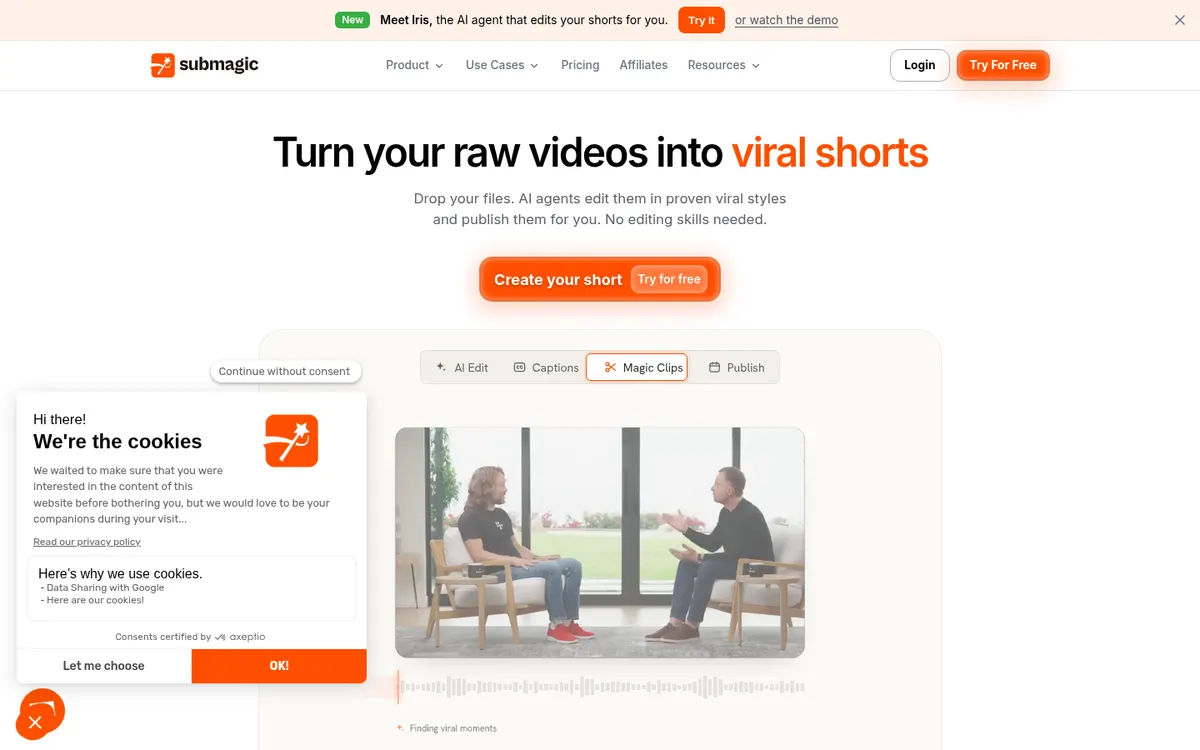
Submagic is a caption and effect studio first and a clipper second, which suits creators whose clips already get found.
Submagic is a caption and on-screen effect tool that also clips. Animated captions with keyword highlighting, automatic emojis, zooms and sound effects are the core, and rendering is fast enough to support a daily posting cadence. If your problem is that your clips look flat next to what competitors post, this is the tool that fixes that specific problem.
AI clipping from long videos is present but secondary. Moment discovery is weaker than the dedicated clippers on this list, and the styling layer is stronger than any of them. That split explains why it appears in stacks alongside a detection tool rather than instead of one: one product finds the moment, Submagic makes it watchable.
There is no free plan, only a trial. In our 2026-11-25 check, Starter was listed at $12 per month billed yearly and $19 month to month. Pricing has historically sat behind an account signup, so confirm the figure on the vendor site before committing, and read the annual terms if you plan to pause between projects.
Caption editing and style presets are quick to learn, and the effects are tuned to how short-form feeds actually look rather than to a generic template library. Rendering speed matters more than it sounds, because a styling tool that makes you wait on every export breaks a daily schedule. The limits are practical: no virality scoring, and discovery you will likely want to supplement. Pick it when styling is the missing piece, not when finding the moment is.
Your clips already get found and the styling is what holds watch time back.
You need the tool to find the moments for you without a second product.
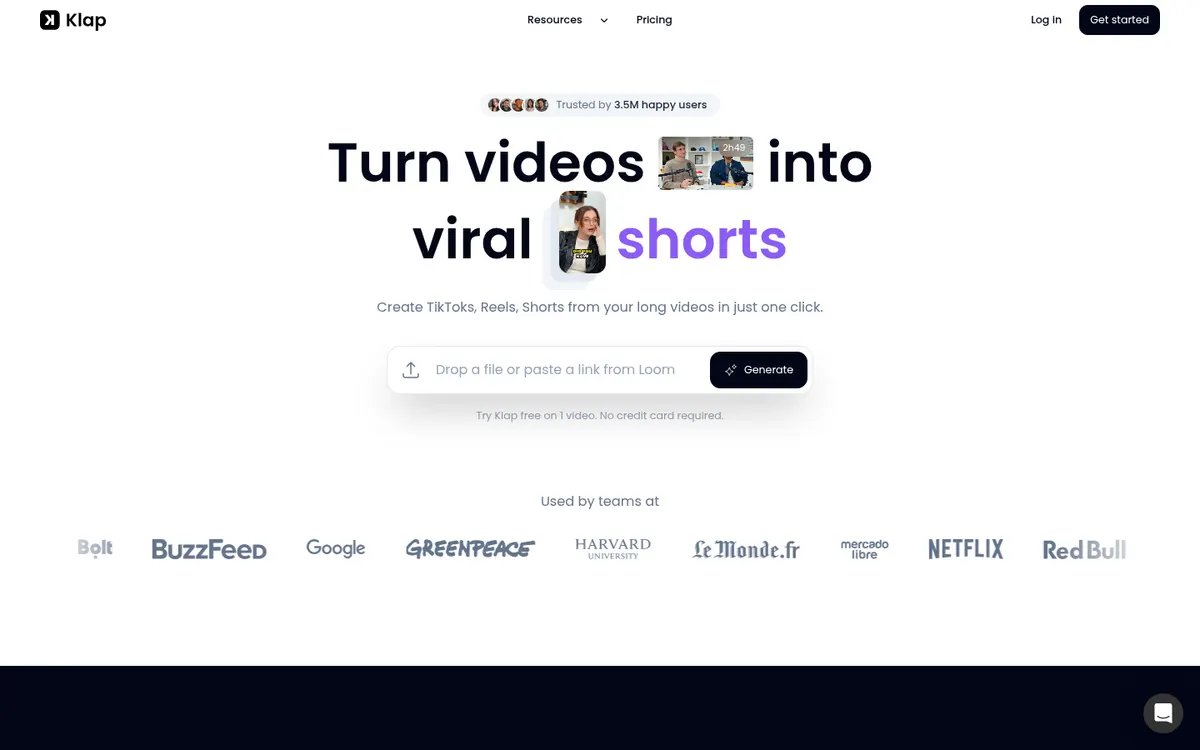
Klap does one job well: upload a long video, get a centered vertical clip with captions, with no clutter and a clear price.
Klap does a narrow job and does it quickly. Upload a long video, get short vertical clips with speakers kept centered by auto-reframing, edit captions if you want, then export. The interface is clean and does not interrupt with upsells mid-flow, which sounds like a small thing until you have used tools that do.
Reframing quality is solid on talking-head footage, which is the source type it is built around. Caption templates exist, but the library is smaller than what larger rivals ship. There is no scheduling, no brand kits and no virality scoring in the plan, and advanced editing options are deliberately limited. If you need a tool that posts on your behalf, this is not it.
Pricing is displayed up front, which is not universal in this category. The lowest paid tier we confirmed was Basic at $14.50 per month billed yearly, with a Pro tier at $29 per month for buyers who need more. Note that the entry price depends on the annual commitment, so check the monthly rate if you only want it for a single project.
The fit is a solo creator who wants a fast loop from upload to export and will handle distribution manually. Agencies and multi-client teams will run out of workflow features quickly, and anyone who needs a ranked list of candidates will miss the scoring layer. It is also a reasonable second tool if you already use a caption specialist and want cleaner reframing on interview footage.
You want a simple, fairly priced tool that turns long videos into centered vertical clips.
You need scheduling, team templates or a ranked list of clip candidates.
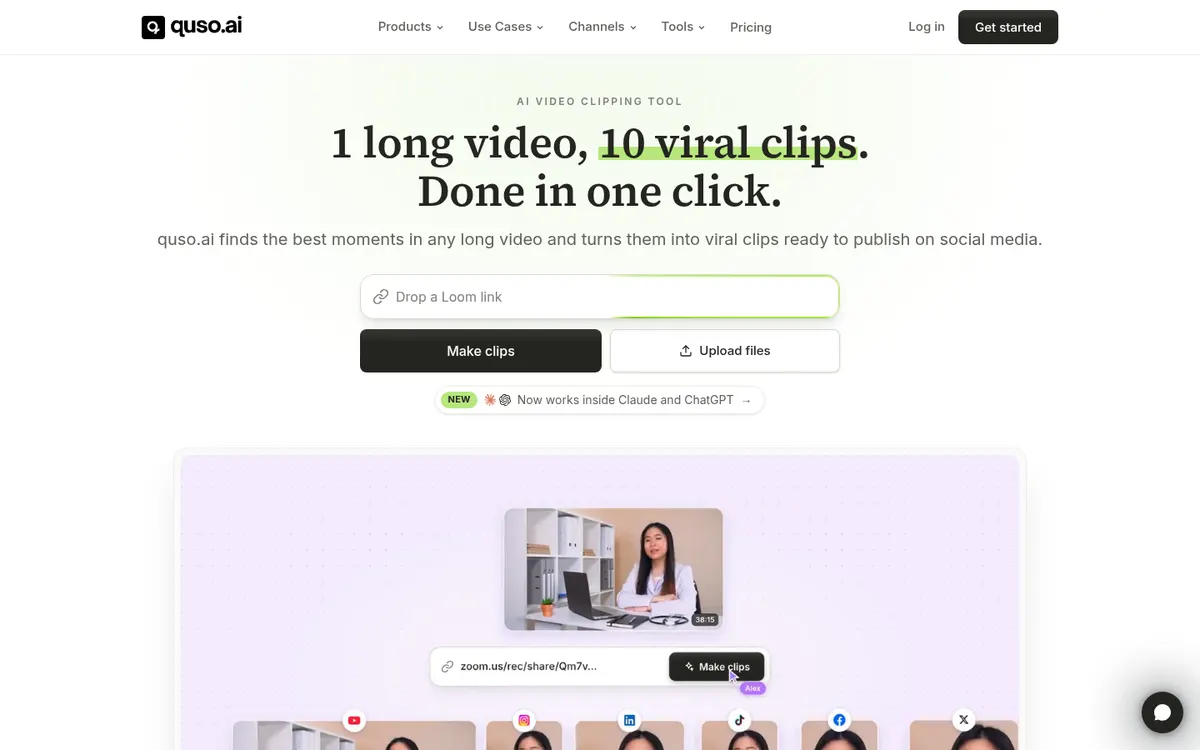
quso.ai makes sense when clipping is one of several content jobs you want under a single login, not the only one.
quso.ai, formerly Vidyo.ai, presents clipping as one feature inside a wider AI content suite. Clip generation works on podcasts, interviews and talks, and returns vertical segments with captions. Beside that you get AI avatars, text-to-video helpers and social scheduling across accounts, all under a single login.
The clipping output is competent. Segments are coherent and captioned correctly, and the scheduling layer means you can take a clip from generation to posted without leaving the product. What it does not do is beat the specialists: moment detection is good rather than the best on this list, and caption styling is functional rather than distinctive.
The bigger issue is coherence. Moving between modules inside one subscription means the interface changes under you, and each has its own logic and layout. Buyers who want one invoice and one login will accept that trade. Buyers who want the sharpest clipper will not.
Pricing could not be confirmed. At the time of our check on 2026-11-25 the vendor site showed only one-time credit packs, so the monthly subscription price could not be verified, and pricing is on the vendor site. There is no free plan; a trial is available. If you need a firm number for budget approval, start that conversation early and ask what the recurring charge looks like after any introductory credits are used.
You want to consolidate several content tasks and clipping under one subscription.
The quality of moment detection is the only thing you are paying for.
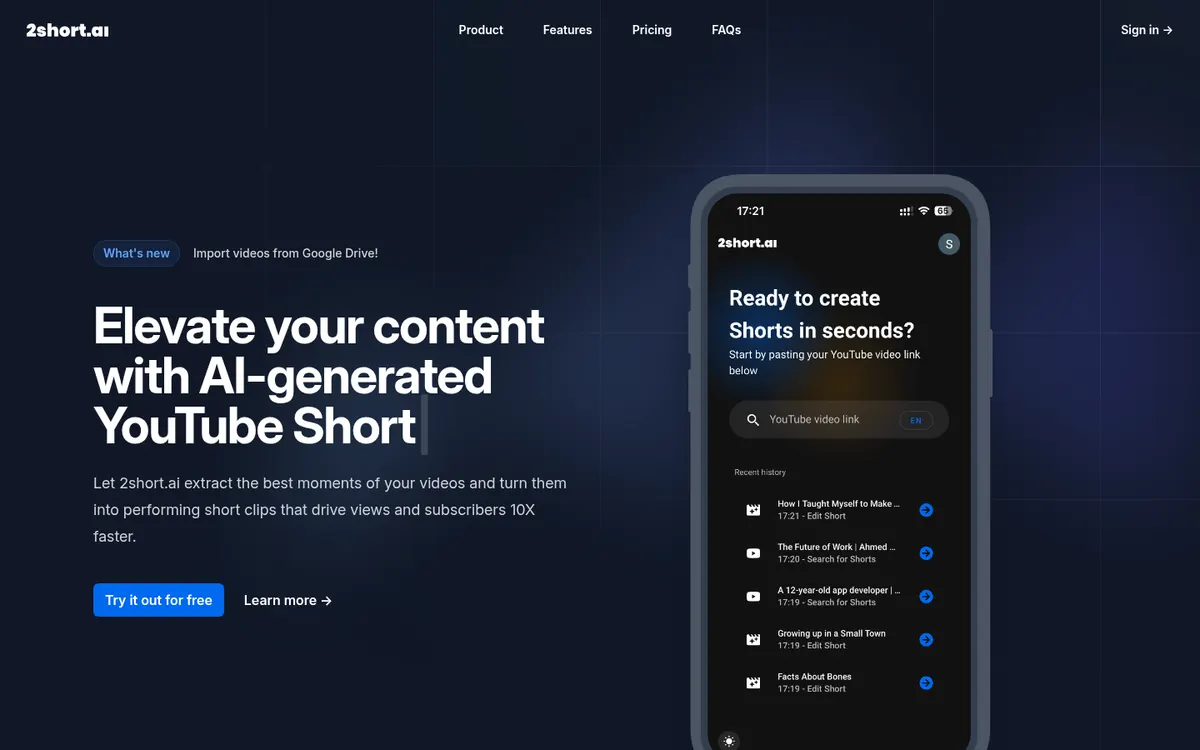
2short.ai is the cheap, quick option for YouTubers who shoot talking-head videos and want serviceable clips with captions.
2short.ai is the low-friction option. Upload a long talking-head video, it finds self-contained segments, cuts them to vertical with captions, and you choose what to export. Processing is fast and the interface is minimal to the point of being sparse.
Moment detection is genuinely good at finding segments that make sense out of context, which is the hardest part of clipping a monologue. Caption styling is basic and templates are few, so output looks plainer than what Submagic or OpusClip produce. There is no virality scoring and no analytics layer, so ranking clips falls to you.
Pricing is Lite at $9.90 per month, Pro at $19.90 and Premium at $49.90, with a free Starter tier that includes 30 minutes of AI analysis per month and a trial available. That is the cheapest paid entry on this list and one of the few free tiers that lets you put real footage through the tool before paying. Pricing is also less prominently published than competitors, so confirm current plans on the site.
The trade is depth. Community and tutorial resources are thinner than larger rivals, which matters when you hit an edge case at 11pm with a deadline. Pick it if you are a YouTuber with a talking-head back catalog who wants cheap, quick clips with correct captions. Skip it if caption styling or performance data drives your decisions.
You have a talking-head back catalog and want cheap, fast clips with captions.
You need styled captions or any kind of performance scoring.
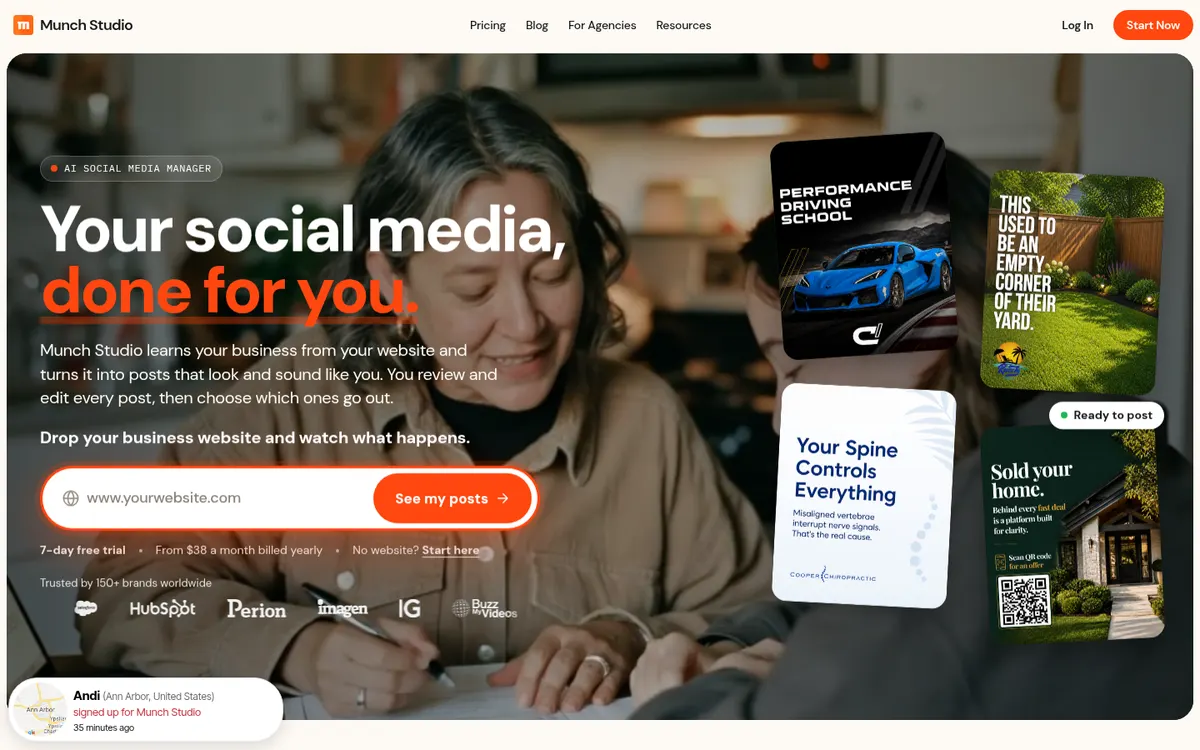
GetMunch suits agencies and social teams that want platform trend context and review workflows more than a bargain.
GetMunch, now operating as Munch Studio, is built for social teams rather than solo posters. Clip generation includes careful reframing that keeps faces and key action in frame, and captions are styled for feed readability rather than for maximum animation.
The differentiator is context. Trend data and keyword insights sit alongside the clips, per platform, so a social manager can match output to what is performing. Workspaces and review flows support multi-client work, and export presets keep team pipelines consistent. That is a heavier product than a creator needs and a useful one for an agency running several brand accounts with approval steps.
Pricing is quote-based. There is no free plan, a trial is available, and no pricing page was available for this vendor at the time of our check on 2026-11-25, so nothing could be checked. That means a sales conversation before you can model cost, which slows procurement and makes side-by-side comparison with self-serve tools harder than it should be.
The interface and process can feel heavy for solo creators who just want clips out the door. For teams already juggling client approvals, the review flow earns its weight. Pick it if trend context and multi-client workflow matter more than a low sticker price, and start the pricing conversation before you fall in love with the workflow.
You manage several brand accounts and need trend context plus approval flows.
You need a self-serve price today and cannot wait on a sales cycle.
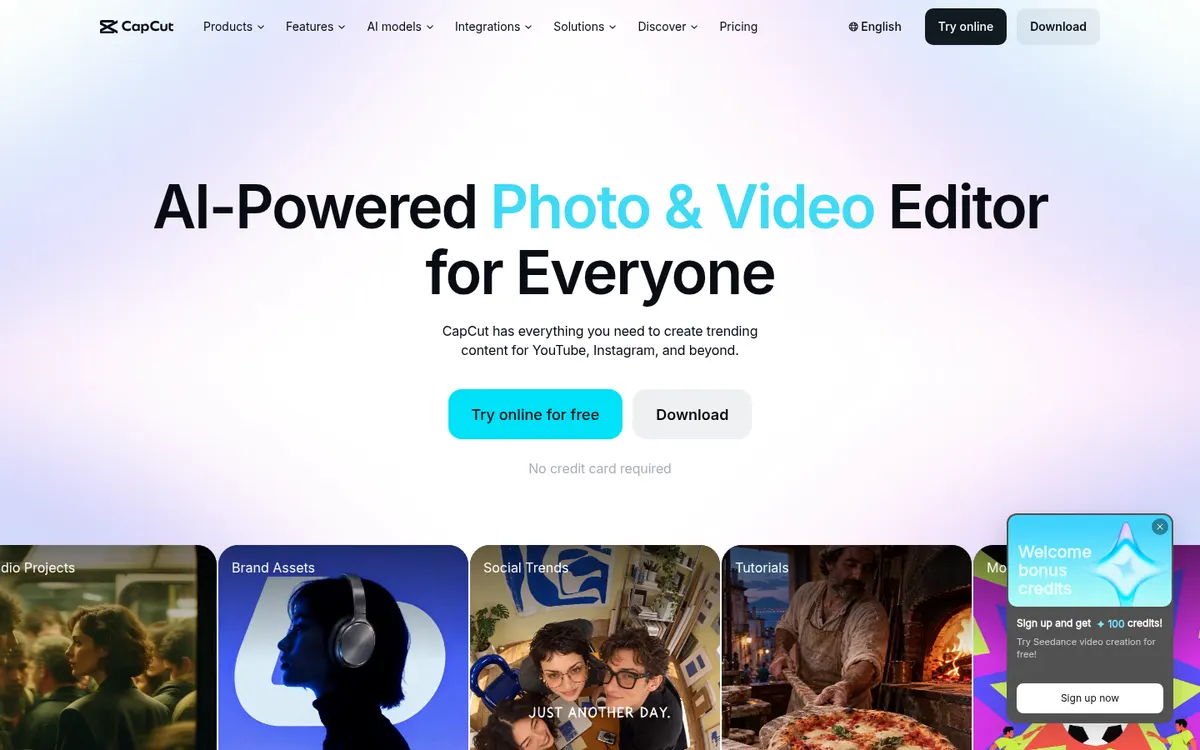
CapCut is the best free option here if you accept more manual selection in exchange for a full editor at no cost.
CapCut is a full timeline editor with auto-captions, templates, effects and transitions, and it also suggests short clips from long videos. The core product costs nothing, which makes it the default starting point for a lot of creators and the reason it belongs on this list at all.
The editing toolset is deeper than any dedicated clipper here. You can fix a cut, adjust timing, layer text and animation, and match a template from a large community library. Auto-captions and text animation are strong. What is weaker is discovery: AI moment detection is less sharp than the specialists, so expect more manual selection and scrubbing through the source.
Because it is an editor first, the workflow is longer. You are not reviewing a ranked list of candidates and approving them; you are building each clip. For some creators that control is the point. For a clipper processing five streams a week, it is a bottleneck that no template library offsets.
Pricing for the paid tier could not be rechecked because no pricing page was available for this vendor at our check, though the free core product is the headline. One consideration some organizations raise is ownership: CapCut is owned by ByteDance, and teams with data or procurement policies around that have to weigh it. Pick it if free editing depth outweighs automation.
You want a capable editor and clipper without adding a subscription line item.
You need automated moment selection at stream volume or have ownership policy constraints.
AI clipping software takes one long recording and returns a set of short vertical videos you can post. The core loop is the same in every tool on this list: transcribe the source, score candidate moments for how well they stand alone, cut them, reframe to 9:16, burn in captions, then export or schedule. Everything else is variation on that loop.
The pipeline usually runs in five stages:
Not every tool starts at stage one. Submagic began as a caption product and still leans on styling rather than discovery. CapCut is a full timeline editor where clipping is one feature among many. SnapDub and OpusClip are built around detection and publishing first, which is why their workflows feel shorter when you are clearing a stream backlog.
Output quality tracks your source material more than the tool. A single speaker on a clean microphone gives almost any of these products enough signal to find usable moments. Crosstalk, heavy accents and dense technical vocabulary push more of the work back to you, and every entry here still benefits from a human pass before posting.
Reframing is the second variable. Talking-head footage reframes well almost everywhere. Gameplay with a facecam overlay needs a layout that understands two regions of the screen at once, which is why SnapDub handles that differently from a generic crop. Pricing follows usage: most tools meter processing in credits, so a long video costs more than a short one, and free tiers are sized for evaluation rather than for a publishing calendar.
This comparison sits on the AI desk. Readers comparing neighbouring stacks often check our guides to ChatGPT alternatives and fence estimating software next.
Pricing in this category falls into a handful of patterns, and knowing which one a vendor uses tells you more than the headline number does. Credit metering is the most common: you buy processing capacity, a long video consumes more than a short one, and the free tier is a small monthly allowance. Flat subscriptions are the second pattern, usually with a discount for annual payment. The third is quote-based pricing aimed at agencies, where no number appears until you talk to sales.
| Model | How it bills | Typical fit | Example from this list |
|---|---|---|---|
| Credit metering | Monthly credits plus a free allowance | Solo creators posting a few clips a week | OpusClip Free gives 60 credits per month |
| Flat subscription | Per month, lower rate on annual billing | Regular posters who want a predictable bill | SnapDub Starter $14.99 per month, two months free annually |
| Annual discount tier | Lowest entry price needs a yearly commitment | Budget buyers who will stay a year | Vizard Creator $14.50 per month billed yearly, listed as 50 percent off |
| Trial only, no free plan | Time-boxed trial, then paid | Buyers who want to test before paying | Submagic and Klap offer trials, no free plan |
| Quote-based | Custom pricing through sales | Agencies and multi-client teams | GetMunch publishes no price |
Read the entry price carefully. A yearly rate that is 50 percent off an introductory figure tells you nothing about year two, so ask what the renewal charges. Several vendors in this list display one number prominently and another further down the page, and one showed a crossed-out figure next to its current rate.
Credit allowances deserve the same scrutiny. Signup credits are sized to let you judge output quality, not to run a posting schedule, and a 500-credit allowance disappears faster than a monthly 60-credit allowance depending on how long your sources are.
Finally, treat quote-based vendors as a different buying process, not a different price. Budget approval takes longer, and you cannot compare them line by line with the self-serve tools without a written quote in hand.
Every price above was checked on the vendor's own pricing page on November 25, 2026. Where a vendor does not publish a figure we write "See website" instead of guessing. To compare annual and monthly billing quickly, try the free percentage calculator.
Start with the source type. Streams with a facecam, webinar archives and talking-head monologues each favor different detection and reframing logic. Write down your dominant source before you look at any pricing page, because it eliminates half the list immediately.
Count your weekly output. Two clips a week and twenty clips a week lead to different products. High volume rewards auto-import, ranked candidates and direct posting; low volume rewards caption polish and editing control.
Decide who reviews clips. If a person approves every clip, a triage view and brand templates save hours. If you post on instinct with no review step, paid workflow features are money you do not need to spend.
Test the free allowance on a real backlog. Run your messiest recent recording through the free tier or trial, not a clean demo file. Judge detection quality and caption accuracy on your own accents, crosstalk and terminology before you trust the marketing.
Confirm the renewal price. Introductory annual rates are common here. Ask what the second year costs, whether unused credits roll over, and what happens to your plan if you pause for a month between projects.
Check the distribution step. Some tools export files only; others post for you. If posting is manual today, a tool with scheduling changes your week more than better captions will.
Buying on clip count promises. Nobody can tell you how many usable clips a one-hour recording contains, because it depends on your material. Judge detection quality on your own footage instead of a quota on a pricing page.
Treating the free tier as a plan. Signup credits and small monthly allowances are evaluation tools, not a publishing calendar. If you post daily, budget for a paid tier from the start rather than rationing credits.
Skipping the source rights check. The tool does not grant rights to footage, music or guest appearances. Confirm what your vendor terms allow and what you actually own before you publish anything generated from someone else's stream.
Paying for styling you will not use. Animated captions and effect layers are valuable only if watch time is your constraint. If clips are not being found, a styling-first purchase solves the wrong problem and leaves the bottleneck in place.
Committing annually before a backlog test. A year of prepayment based on a demo is a gamble. Run one real backlog through the tool on monthly billing or a trial, then switch to annual once the output holds up across several sources.
No. Every tool on this list benefits from a human pass. Detection gets you a shortlist and captions get you a draft, but both fail on crosstalk, quiet speakers and dense terminology. Treat the output as an edit that needs approval, not a finished post. The tools that rank highest here reduce review time rather than removing it, and that is the realistic expectation.
Less reliable than vendor demos suggest, and quality varies by tool. Clean single-speaker audio is handled well almost everywhere, while overlapping speakers and jargon need correction. Word-level timing, which OpusClip and others provide, makes fixes faster because you edit text rather than scrub audio. Always run one recording with your own accents and terminology through the free tier before buying.
That depends on two separate things: your rights to the source footage and the vendor's terms. The tool licenses software, not content. If you clipped your own stream you are usually clear, but guest appearances, licensed music and third-party footage carry their own constraints. Read the vendor terms and check your source rights before publishing anything, especially for client or brand work.
There is no fixed number, and any vendor quoting one is guessing. It depends on how self-contained your conversation is, how many speakers overlap, and how strict you are about quality. What you can control is review time: tools with ranked candidates and a triage view let you reject weak moments faster, so the practical yield per hour of your attention goes up.
Sometimes, but rarely at a working volume. Several tools here give free monthly credits, and CapCut's core editor costs nothing at all. Free allowances are sized for evaluation, so expect a few clips before you hit the limit. Check whether the free tier includes captions and exports or only watermark-free previews, since that changes what you can actually publish.
Usually not for a simple talking-head clip, and often yes for anything with overlays or brand requirements. Tools like OpusClip and Submagic return near-finished vertical clips. When you need precise cuts, layered graphics or a specific brand frame, a full editor such as CapCut or a quick pass in your existing editor is faster than fighting a template.
Browse every comparison on the AI desk, with the same rubric and dated prices.