Ranked #1
Adobe Illustrator
Path precision
See website
- Best for
- Professional vector design for print-ready die-cut sticker files
- Free plan
- No
- Rubric
- 8.3 / 10
We ranked ten sticker design tools for November 2026 by how well they produce print-ready cut lines, editable vector art, and finished stickers.
 Prices checked November 25, 2026
As of November 2026, the best sticker design software depends on what you hand off: Adobe Illustrator for print-ready vector and die-cut files, CorelDRAW for prepress-heavy production shops, and Canva for beginners who need simple designs fast. Illustrator gives the tightest path control and the AI, PDF and EPS formats trade printers ask for. CorelDRAW matches it on color and output control. Canva trades vector precision for speed and a free plan. The other seven tools cover iPad drawing, free vector work, and design-and-print services.
Path precision
See website
Prepress color control
See website
Template to print
See website
Disclosure for this page: All 10 tools here are unpaid editorial picks. The position of a paid listing can be part of what the vendor pays for. How we handle paid listings.
| Tool | Best for | Free plan | Actions | |||
|---|---|---|---|---|---|---|
| 1 | Adobe Illustrator | Professional vector design for print-ready die-cut sticker files | See website | No | ||
| 2 | CorelDRAW | Prepress-heavy shops needing strong color and output control | See website | No | ||
| 3 | Adobe Express | Beginners wanting templates plus built-in sticker printing and shipping | See website | Yes | ||
| 4 |  Canva | Newcomers making simple sticker designs from templates fast | See website | Yes | ||
| 5 |  Procreate | iPad artists drawing hand-lettered and illustrated sticker art | See website | No | ||
| 6 |  Inkscape | Free vector design with proper die-cut cut lines | See website | Yes | ||
| 7 |  Affinity | Professional vector and raster editing at no cost | See website | Yes | ||
| 8 |  Sticker Mule | Designing in the browser and printing through one vendor | See website | Yes | ||
| 9 |  StickerApp | European sellers wanting browser design plus local production | See website | Yes | ||
| 10 |  Silhouette Studio | Home cutting of stickers on Silhouette machines | See website | Yes |
Every tool here was scored against the same five criteria, with weights set before any evaluation started. Vector control carries 30 percent, because a sticker that cannot be cut on a custom outline is a rectangle with extra steps. File compatibility takes 25 percent, covering which export formats a trade printer will accept and whether separations survive the handoff. Ease of use gets 20 percent, weighted toward the first hour rather than the hundredth. Price and access takes 15 percent, counting free plans, one-time purchases and subscription-only models. Asset depth takes the last 10 percent, for templates, fonts and brush libraries that shorten the path from idea to file.
Prices and plan details come from vendor pricing pages checked on 2026-11-25. Several of those pages returned no readable text, and where that happened the listing says pricing is on the vendor site rather than quoting a number. Free plans and free editions are reported only where the vendor states them.
Order is editorial. Each position reflects how well a tool fits the buyer described in its entry, from professional print production at the top to home cutting at the bottom. Any listing marked Featured is a paid placement, scored with the same rubric and given the same honest cons as every other entry, and it appears where it does because of that placement.
A note on what this list is not: it does not settle which tool is best in the abstract. Illustrator wins on file acceptance, Canva wins on speed, Inkscape wins on cost, and none of those wins translates into a universal recommendation. Match the tool to the handoff you actually perform, whether that is a printer, a cutting machine or a checkout page.
The full process, including how we handle corrections, is on the methodology page. Paid listings follow our advertising disclosure.
| Criterion | Weight | What we check |
|---|---|---|
| Vector control | 30% | How precisely the tool draws and separates the cut line from the printed artwork. |
| File compatibility | 25% | Which export formats a trade printer will accept without conversion or argument. |
| Ease of use | 20% | How quickly a first-time user reaches a usable sticker file or a placed order. |
| Price and access | 15% | Free plans, free editions and one-time purchases weighed against subscription-only models. |
| Asset depth | 10% | Templates, fonts, brushes and tutorials that shorten the path from idea to artwork. |
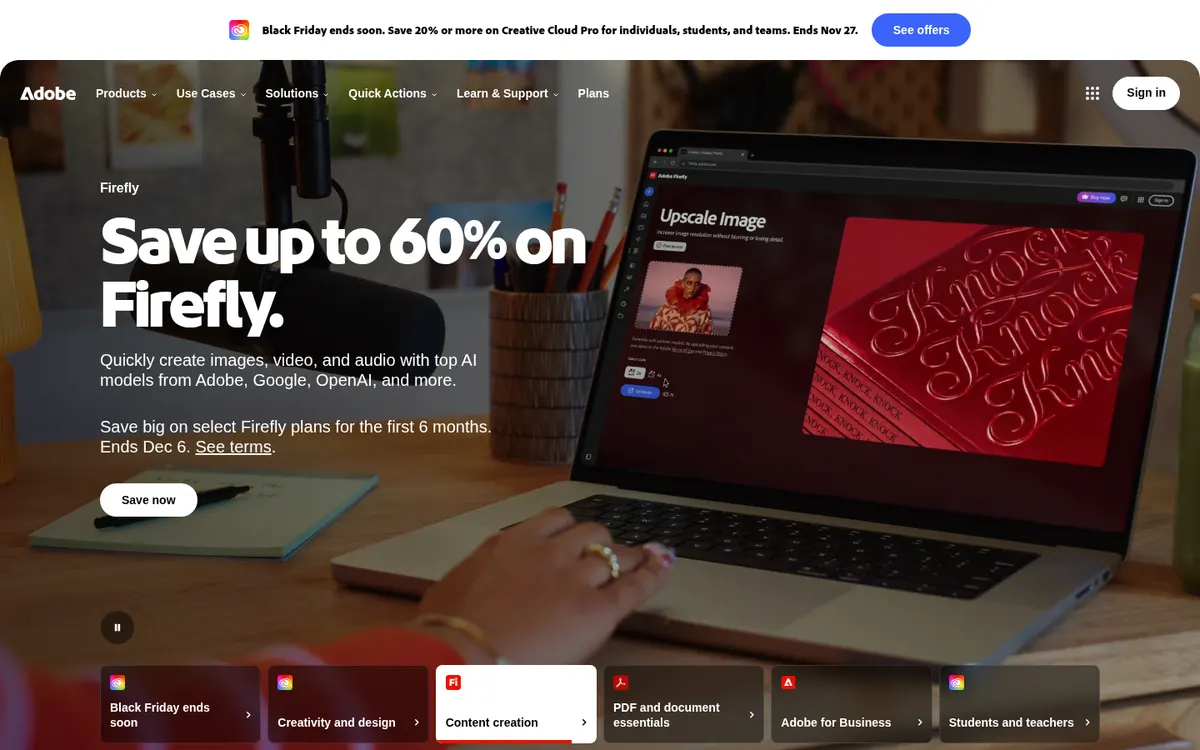
The safest choice when your printer needs AI, EPS or PDF files with clean die-cut paths.
Adobe Illustrator is a common choice for sticker artwork headed to a trade printer. The pen tool and path editing do the work that matters most here: drawing a cut contour that follows a custom shape exactly, then keeping it on its own layer with a spot color reserved for the cut path. That separation is what lets a printer's software read the die line instead of printing it. Artboards scale for large sticker sheets, and export covers PDF, EPS, SVG and AI. Prepress controls for color and separations round out the print side, and Adobe Fonts plus stock assets cut down on outside sourcing. The practical advantage is acceptance: AI, EPS and PDF from Illustrator are the formats trade printers most often request, so you spend less time converting files or explaining them. Finishing work in other Adobe apps is simple because the tools are designed to work together. The cost is commitment. Illustrator sells by subscription only, with no perpetual license, and the plan price sits on the vendor site rather than in this article. We could not confirm the current figure when prices were checked on 2026-11-25, so check it directly before budgeting. The learning curve is real, and the pen tool in particular takes practice before cut lines come out clean. For a shop printing a handful of simple round stickers from a template, it is more software than the job needs. Pick it when file acceptance and path precision decide whether an order runs: custom die-cut shapes, multi-sticker sheets, any job where the printer asks for AI or EPS. Teams already paying for Creative Cloud get the most from it, since fonts and libraries are already in place and the finishing apps are part of the same subscription.
Your printer asks for AI, EPS or PDF and the sticker has a custom outline.
You only need square stickers from a template and want to spend an hour, not a month, learning.
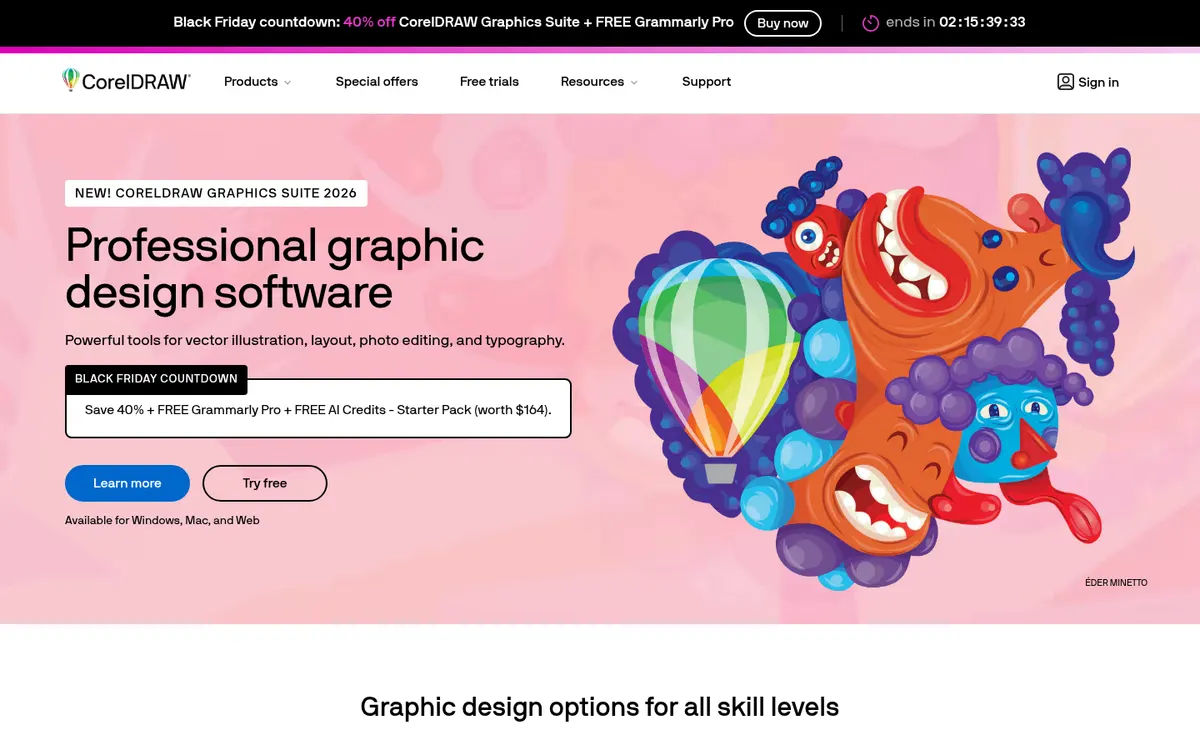
A prepress workhorse that sign and sticker shops already run, with color control that rivals Illustrator.
CorelDRAW has been a long-running tool in sign and print shops, and that history is the reason to consider it. The vector tools cover node editing, bitmap tracing that turns existing art into cut paths, and multi-page layout for sticker sheets. The prepress side is the real strength: color management, spot color and overprint settings, PDF export tuned for print production, and large-format output handling for oversized runs. If your printer runs CorelDRAW natively, file handoff gets simpler, because nobody has to convert or second-guess a translation. That matters more than feature lists in shops where a single bad export wastes a whole run of material. For a business that prints its own work, layout pages and prepress controls mean one file can travel from design to output without a second application. The weaknesses are ecosystem, not capability. Tutorials, templates and third-party plugins are fewer than Adobe's, and the illustration toolset, while capable, is not the main draw. Pricing runs as a subscription in the same range as Illustrator, and we could not confirm the current figure on 2026-11-25 because the pricing page returned no readable text, so verify terms on the vendor site. Pick it when your production partners already live in CorelDRAW, or when color and output control for large format matter more than template volume. For a designer handing files to someone else, the advantage depends entirely on what the receiving shop runs, so ask before you commit. Skip it if you are new to vector design and want the biggest library of tutorials and stock assets to learn from.
Your print partners run CorelDRAW natively or you need tight color and output control.
You are learning vector design and want the largest pool of tutorials and starter assets.
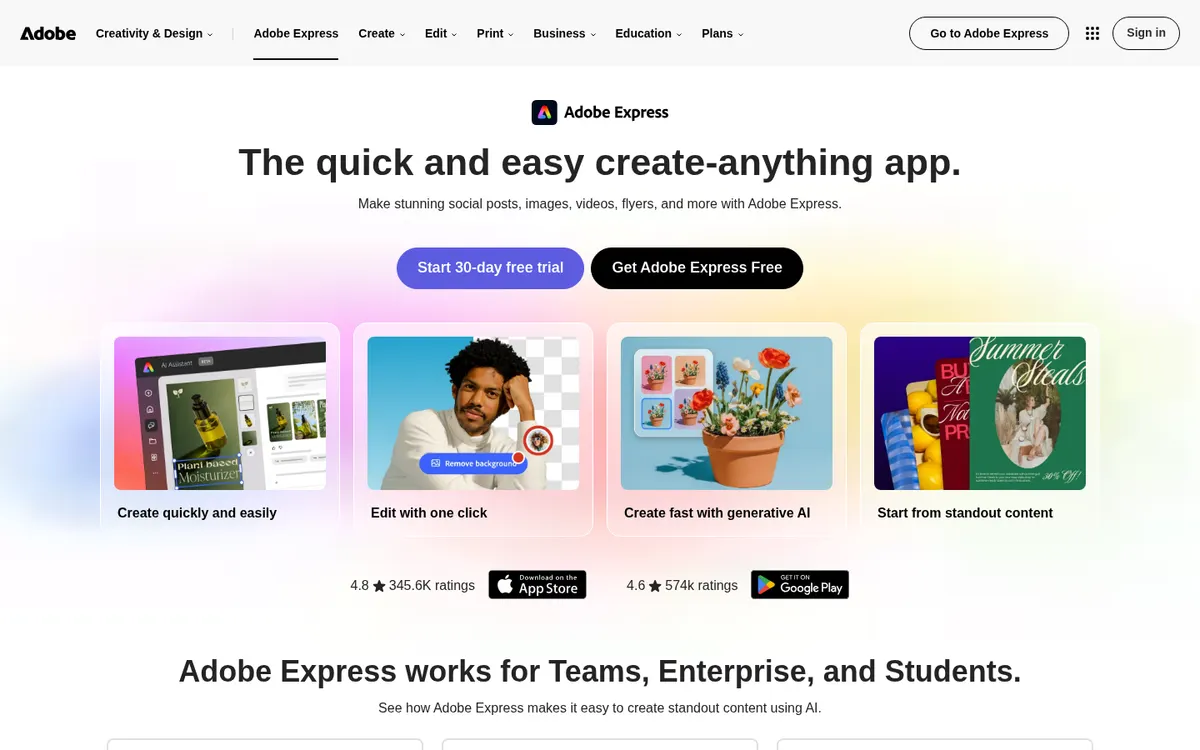
The fastest route from template to printed sticker for a beginner, with limited control over cut lines.
Adobe Express is the entry point in Adobe's lineup, and for simple stickers it is the fastest one. You start from a template library, apply a brand kit with Adobe Fonts and stock assets, and use one-click background removal for product photos or portraits. Sticker sizes are limited to square and rectangle, and printed orders can be placed and shipped from inside the app, though shipping covers only the US, Canada, Australia and the UK.
The workflow suits someone who wants a finished sticker rather than a file. Templates handle layout, quick actions handle cleanup, and real-time collaboration lets a second person review before you order. Export to PNG and PDF covers outside printing if you would rather use a local shop. For a small business making logo stickers for packaging, that combination is hard to beat on time.
Where it falls short is path control. There is no real pen tool for a custom die-cut contour, so anything beyond a square or rectangle needs a vector editor. Precision is lower than a dedicated vector app across the board, and printed orders ship only to a few countries as stated in the pack. Assets created here do carry over toward Illustrator later if you outgrow the templates.
Pricing follows a free plan plus paid tiers, with current figures listed on the vendor site. We could not confirm those figures on 2026-11-25, so treat the plan cost as unverified until you check it yourself. Pick it if you want a sticker designed and ordered in one sitting and your shapes are simple. Skip it if the sticker has to follow a custom outline or go to a trade printer as a vector file.
You want a simple square or rectangle sticker designed and ordered in one sitting.
The sticker needs a custom outline or a vector file for a trade printer.
Best for quick mockups and simple designs, but not a vector tool for die-cut production.
Canva is built for quick first designs, and for good reason: a drag-and-drop editor in a browser, no install, and a template and element library large enough that a usable design is minutes away. Background removal and image effects handle the cleanup most sticker ideas need, brand kits and shared folders keep a small team consistent, and PNG, JPG and PDF export cover basic handoff. The limit is that Canva is not a vector editor. Artwork is assembled from elements and exported as raster or as a PDF that may not contain true vector paths. Die-cut lines and bleed need workarounds, usually a separate shape exported alongside the art, and some print shops reject the exported files outright. Magic-style AI helpers speed up ideation but do not fix the underlying file structure. In practice Canva works best as a sketch and layout tool. Design the sticker there, mock it up, get approval, then rebuild the cut contour in a real vector app if the job goes to die-cut production. Used that way it is a cheap way to test sticker ideas before committing to a print run, and the near-zero learning curve means a non-designer can contribute. Canva runs a free plan with paid tiers, and plan prices plus export limits are listed on the vendor site. We could not confirm current figures on 2026-11-25, so check them before you rely on a specific tier. Pick it if you need a simple sticker fast and will print through a service that accepts raster files. Skip it if the printer asks for AI, EPS or SVG with a separate cut layer.
You need a mockup or a simple sticker design finished in an afternoon.
Your printer requires vector files with a separate cut path layer.
The drawing app for illustrated sticker art, with cut paths left for a separate vector editor.
Procreate is a drawing app, not a production tool, and that is exactly why illustrators like it. The brush engine produces hand-lettered and painted sticker art that vector tools struggle to imitate, layers with blend modes and clipping masks handle shading, and drawing guides plus symmetry tools speed up repeatable shapes. Timelapse recording captures the process, which is useful if you post work publicly.
Export covers PSD and PNG at high resolution, so art moves into Illustrator, Affinity or Inkscape for the cut line. That split workflow is standard: draw on the iPad, then trace or rebuild the outline as a vector path on a desktop. It costs an extra step and a second app, but the drawing experience is the reason people accept it, and the large community producing brushes and tutorials keeps the learning curve short.
The limits are structural. There is no vector output at all, so cut-line preparation must happen elsewhere, and the app is iPad only, with no desktop version. For a sticker where the art is the product (character art, hand lettering, illustrated packs), those limits rarely bite. For a shop producing geometric logo stickers at volume, they do.
Procreate is sold as a one-time app purchase rather than a subscription, which is unusual in this group. We could not verify the current price, so check the App Store listing before buying. Pick it if your sticker art is drawn by hand and you already have a vector app for the cut path. Skip it if you need one tool that exports print-ready die-cut files.
Your sticker art is illustrated or hand-lettered and you have a vector app for cut paths.
You want a single tool that exports print-ready die-cut files.
Real vector paths and proper layers for die lines, at zero cost and with a rougher interface.
Inkscape is the free answer to the vector question, and it answers properly. Path and node editing are real vector operations, layers let you keep artwork separate from the cut line, path effects and boolean operations handle complex outlines, and the native format is SVG, which suits die-cut files. Bitmap tracing generates cut paths from existing art, and the app runs on Windows, macOS and Linux. The standard workflow is one layer for artwork, another for the die line, exported as SVG. That is the same structure a paid vector app produces, and it is genuinely enough for custom-shaped stickers, sheet layouts and small runs. The extension ecosystem adds extra export formats where a shop needs something specific. The interface is the weak point. Panels and shortcuts are less polished than Illustrator or CorelDRAW, and some tasks take more clicks than they should. Ready-made sticker templates are scarce, so you build layouts yourself, and learning resources assume some vector literacy. A few older print shops still ask for AI or EPS files rather than SVG, which means a conversion step or a conversation before the order runs. Inkscape is free and open source, with no subscription, license or seat count. We could not re-verify the download on 2026-11-25 because no page text was captured, so confirm the current version on the project site. Pick it if budget is the constraint and your printer accepts SVG or PDF. Skip it if you need hand-holding, templates, or a shop that insists on Adobe-native files.
Budget is fixed and your printer or cutter accepts SVG and PDF.
You want templates, guided tutorials, or a shop that demands AI files.
Professional vector and photo editing for free, though printers may still ask for Adobe files.
Affinity is the strangest entry in this list because it became free. The suite pairs Affinity Designer, a vector app with pen and node tools, with Affinity Photo for raster retouching, and both run on desktop and iPad. Symbols, assets and reusable styles keep repeated sticker elements consistent, live filters and adjustment layers handle image work, and PDF plus SVG export covers print handoff. For sticker production the combination is useful: draw the shape and cut contour in Designer, retouch a photo or texture in Photo, export a PDF the printer can read. The interface is fast and modern, and the price is zero after the brand change, which removed the previous one-time license cost. That makes it the most capable free option for anyone who needs both vector and raster in one suite. Two things hold it back. Templates and tutorials are thinner than Adobe's, so you learn more by experimenting. And print shop acceptance is still catching up, so some shops may not accept Affinity exports without a PDF or SVG. There is no built-in printing or proofing service, so you still need a printer. Exporting to PDF or SVG avoids most acceptance issues, since those formats travel better than native Affinity files. Affinity is free with no subscription. We could not re-verify the current download on 2026-11-25 because no page text was captured, so confirm on the vendor site. Pick it if you want professional vector and photo tools without a subscription and can export PDF or SVG. Skip it if your printer cannot accept PDF or SVG or you want a large template library.
You want vector and photo tools with no subscription and can export PDF or SVG.
Your print shop cannot accept PDF or SVG or you rely on templates to start.
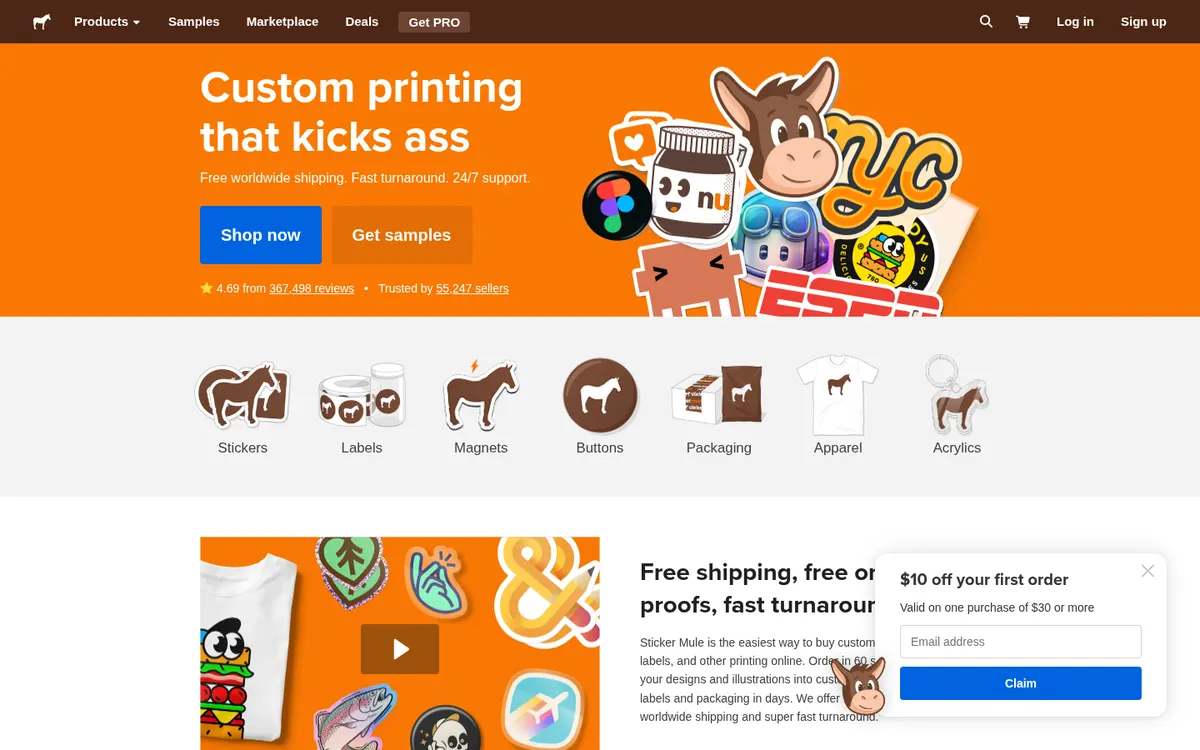
Design and print in one browser tab, with proofs, at unit costs that favor small runs.
Sticker Mule sells stickers, and the design tools exist to make ordering them easy. Everything runs in a browser: upload artwork or build a design in the free tools, choose die-cut or kiss-cut, pick a material and finish, then approve a free digital proof before anything prints. Custom shapes and sizes are supported, and reordering is a couple of clicks.
The value is that file preparation knowledge is not required. The proofing step catches problems before production, which matters if you have never set up a cut line. For a small business ordering 50 stickers for packaging, that path from idea to delivered box is short and hard to beat, and the range of materials and finishes covers most retail needs without a second vendor.
The catch is that the output is tied to their service. Design files cannot be handed to another printer, so the convenience disappears if you want to compare quotes or move production. Unit costs also run higher than trade printers at volume, which only matters once quantities climb, but it matters a lot when they do.
Pricing works per printed order rather than per seat, with the design tools free to use and free proofs before print. We could not capture the pricing page, so confirm current rates, materials and shipping on the vendor site before ordering. Pick it if you want a small run of custom stickers without learning file setup. Skip it if you need portable files or you are ordering thousands of units where unit cost dominates.
You want a small run of custom stickers and a proof before anything prints.
You need files you can take to another printer or you are ordering at trade volume.
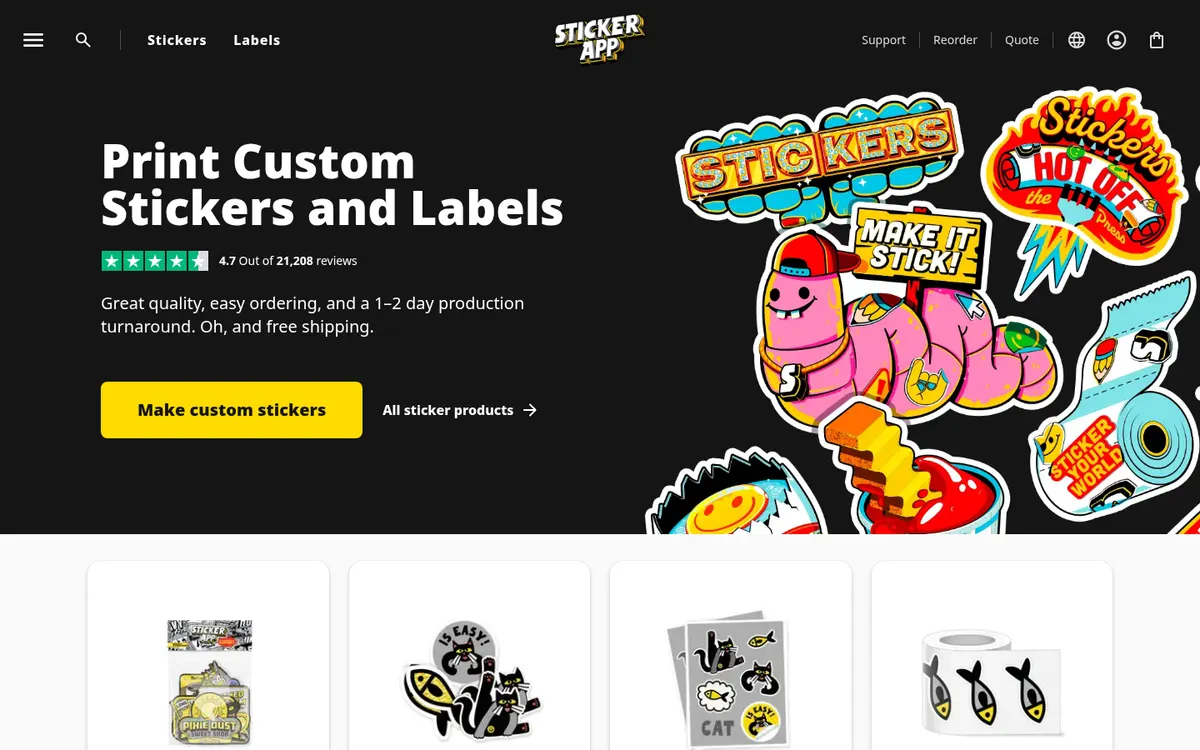
The European equivalent: browser design, local production, and short shipping inside the EU.
StickerApp is the European version of the design-and-print model, with a free online designer in the browser, production based in Europe, and a wide choice of materials and finishes. Custom die-cut shapes are supported, artwork can be uploaded if you already have it, and a proof review catches file problems before printing. Sample and small test runs are available, which is useful before committing to a large order. For sellers shipping inside the EU, the practical advantages are short shipping times and no customs friction. That can matter more than a lower headline unit price from a supplier outside the bloc, because landed cost and delivery time decide whether a launch date holds. The material and finish selection is broad enough for a range of retail sticker needs. The limits mirror the category. Design output is locked to their print service, and the files do not travel to another vendor. Brand recognition outside Europe is lower, and for US buyers the landed cost is less attractive once shipping is included. US sellers should compare quotes from domestic printers before committing to a run, especially at volume. Pricing is per printed order rather than per seat, with the online designer free and proofing included before print. We could not capture the pricing page, so confirm current rates, materials and shipping on the vendor site. Pick it if you are in Europe and want design and production in one place with short delivery. Skip it if you are outside the EU, or you need portable design files for a different printer.
You sell in Europe and want design, production and delivery from one supplier.
You are outside the EU or need design files that travel to another printer.
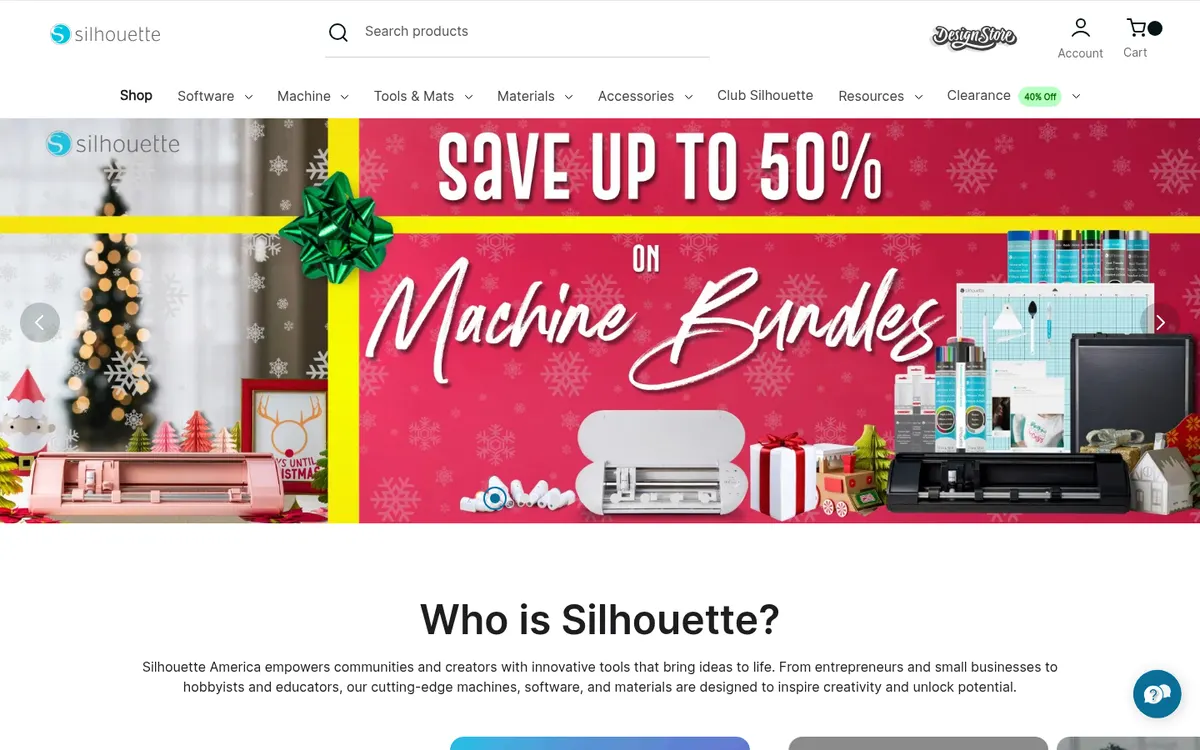
A free companion app for Silhouette cutters, where the print-then-cut loop happens in one place.
Silhouette Studio is a companion app, not a general design tool, and it should be judged that way. It drives Silhouette cutting machines directly, runs a print-then-cut workflow with registration marks so printed art lines up with the blade, and includes a trace tool that converts existing artwork into cut lines. Layers and a layout canvas handle sheet arrangement, and a library stores designs for repeat jobs. The free Basic edition covers standard home production, which is why the app is useful for small sticker operations. Printing on a home inkjet or laser, then cutting on the machine, is a complete loop inside one program. For craft sellers and market stalls, that can be enough, and the print-and-cut pairing removes the alignment guesswork that makes home sticker production frustrating. Design tools are basic next to Illustrator: fine illustration still happens elsewhere and gets imported. Advanced import and export formats sit behind paid editions, so check which file types your edition opens before you plan a workflow around it. The app is also only useful with the hardware, which is a separate purchase and a fixed cost before anything prints. Silhouette Studio is free at the Basic level with paid upgrades. We could not capture the pricing page, so confirm edition features and upgrade prices on the vendor site. Pick it if you own a Silhouette cutter and want print-then-cut in one place. Skip it if you need vector design for a trade printer rather than home cutting.
You own a Silhouette cutter and want printing and cutting coordinated in one app.
You are preparing vector files for a trade printer rather than cutting at home.
Sticker design software does two jobs, and most of the confusion in this category comes from mixing them up. The first job is the artwork: the drawing, lettering or photo that people see. The second is the cut line, the path a blade or plotter follows to separate the sticker from its backing. A tool that handles both well is worth more than one that only draws well. A die-cut line follows the outline of your art, so a custom shape needs a custom path. A kiss-cut line cuts through the sticker material but leaves the backing sheet intact, which is how sheets of stickers ship. Either way, the cut path has to be a separate layer, usually in a spot color the printer's software recognizes, so the machine cuts there instead of printing a visible line. Vector versus raster is the other divide. Vector paths (SVG, AI, EPS, PDF) scale to any size without pixelation and are the formats trade printers most often request for die-cut work. Raster files (PNG, JPG, PSD) are fine for textured or hand-drawn art if the resolution is high enough, but the cut line still has to be redrawn as a vector path before a printer can use it. Common handoffs: - Draw in Procreate on an iPad, export PSD or PNG, then trace the outline in Illustrator, Affinity or Inkscape.
This comparison sits on the Design desk. Readers comparing neighbouring stacks often check our guides to software to design clothes and AI clipping software next.
Sticker design software bills in six recognizable ways, and the model matters more than the sticker price because it decides how many seats you can afford and how freely files move. Every price in this article was checked on 2026-11-25, and the vendor pages did not return readable figures, so no number is quoted here. Confirm current rates on each vendor site before you budget.
| Model | How it bills | Typical fit | Example from this list |
|---|---|---|---|
| Subscription | Monthly or annual, per seat | Studios and shops with steady production | Adobe Illustrator, CorelDRAW |
| Free plan with paid tiers | Free tier, paid upgrade for assets and limits | Beginners testing sticker ideas | Canva, Adobe Express |
| Free open source | No cost, community maintained | Budget vector work with cut lines | Inkscape |
| Free proprietary suite | No cost after the brand change | Vector and photo work without subscriptions | Affinity |
| One-time app purchase | Single payment, no subscription | iPad illustrators | Procreate |
| Free tool tied to a print service | No design fee, pay per printed order | Small runs with one vendor | Sticker Mule, StickerApp, Silhouette Studio Basic |
Every price above was checked on the vendor's own pricing page on November 25, 2026. Where a vendor does not publish a figure we write "See website" instead of guessing. To compare annual and monthly billing quickly, try the free percentage calculator.
Name the output first. Decide whether you are sending files to a trade printer, ordering printed stickers from a service, or cutting at home on your own machine. Every other choice follows from that, including whether vector output matters at all.
Confirm the cut requirement. Ask the printer whether they need a die-cut path on a separate layer, a kiss-cut sheet, or plain rectangles. If the answer is die-cut, a raster-only tool is out before you compare features or prices.
Match the tool to the art style. Hand-drawn and painted art points to Procreate plus a vector editor. Logos and geometric shapes point at Illustrator, CorelDRAW, Inkscape or Affinity. Template-based graphics point at Canva or Adobe Express.
Check file acceptance with the receiving shop. Send a test file before a real order. Shops running CorelDRAW may prefer it natively, older shops may want AI or EPS, and anyone cutting at home will take SVG without complaint.
Price the whole job, not the software. A free design tool with a high print markup can cost more than a paid subscription plus a trade printer. Compare landed unit cost including shipping, materials and reprints caused by file errors.
Run a small batch before committing. Order a sample or a short run, then check color, cut accuracy and material against what you expected. Proofing catches problems that no feature comparison will, and it is cheaper than a wasted full run.
Leaving the cut line on the art layer. A visible outline prints along with the sticker, and the cutter has nothing clean to follow. Put the path on its own layer in a spot color and check the export before sending.
Promising vector output from a raster tool. Procreate and Canva produce excellent visuals but not cut paths. If the printer asks for AI, EPS or SVG, plan the conversion before you quote a delivery date.
Assuming a free design tool means a cheap order. The print price is where the money goes. A free browser designer tied to one print service removes your ability to compare quotes on a large run.
Skipping the proof. Free proofs exist at Sticker Mule and StickerApp, and they catch resolution, color and cut problems before production. Approving without reading them shifts the reprint cost onto you.
Buying hardware before testing the workflow. A cutting machine plus Silhouette Studio is only efficient if you already have artwork and steady volume. Test a small batch first and confirm the paid edition opens the file types you need.
Vector is preferred, but raster works if the resolution is high enough. Vector paths (AI, EPS, SVG, PDF) scale without pixelation and are the formats trade printers most often request for die-cut jobs, because the cut line has to be a path anyway. Raster art (PNG, JPG, PSD) is fine for textured or hand-drawn designs, but keep it large and plan to trace the outline separately in a vector editor before sending files.
A die-cut line follows the outline of the artwork, so the finished sticker has a custom shape. A kiss-cut line cuts through the sticker material but leaves the backing sheet intact, which is how sticker sheets ship. Both are separate paths from the printed art, usually set in a spot color on their own layer so the cutter reads them as instructions rather than printing a visible line.
Yes, and it is a common illustrator workflow. Draw in Procreate, export PSD or PNG at high resolution, then trace or rebuild the outline as a vector path in Illustrator, Affinity or Inkscape. The cut line has to be a real vector path for die-cut production, so the second step is not optional. Budget for the extra app and extra time per design.
Design in a template tool and order through the same service. Adobe Express, Canva, Sticker Mule, StickerApp and Silhouette Studio all shorten the path by handling layout or cut setup for you. Sticker Mule and StickerApp add free proofs before printing, which catches file problems early. The tradeoff is that the print services keep your order tied to that vendor, and design files from those services may not travel cleanly to another printer.
Design in-house when you need reusable brand files, custom die-cut shapes, or quotes from more than one printer. Design-and-print services are efficient for small runs and simple shapes, but the output is locked to that vendor and cannot be handed elsewhere. If you expect repeat orders, seasonal variants or volume pricing, owning a vector file pays for itself quickly.
Sometimes, and it depends on the shop. Both tools export PNG and PDF, and a high-resolution PNG can work for simple shapes depending on the shop. Die-cut work is the sticking point, because the cut line has to arrive as a separate vector path, and neither tool produces one cleanly. Ask the printer what they need before you design, and expect to rebuild the outline in a vector app.
Browse every comparison on the Design desk, with the same rubric and dated prices.