Ranked #1

TeamViewer
Per-display session views
$60.13Premium, per month, billed annually, excl. tax, Black Friday 30% off first year
- Best for
- general remote access with multi-monitor
- Free plan
- Yes, personal use
- Rubric
- 7.5 / 10
Ten remote desktop tools compared on display handling, latency, pricing and management features, with prices checked on 2026-11-26 so you can pick before you pay.
 Prices checked November 25, 2026
The best remote desktop software for multiple monitors in November 2026 depends on how many screens you drive and how often. TeamViewer suits general remote access where per-display switching, screen scaling and broad device coverage matter more than price. Splashtop suits high-resolution work such as video, CAD and development on remote workstations. AnyDesk suits buyers who care most about latency on weak connections. Ten tools were compared, with prices checked on 2026-11-26.
Per-display session views
$60.13Premium, per month, billed annually, excl. tax, Black Friday 30% off first year
Low-latency codec
$28.72Standard, per month for 1 connection, billed annually, 20% off

4K multi-monitor streaming
$6Solo, per month, billed annually at $72
Disclosure for this page: All 10 tools here are unpaid editorial picks. The position of a paid listing can be part of what the vendor pays for. How we handle paid listings.
| Tool | Best for | Free plan | Actions | |||
|---|---|---|---|---|---|---|
| 1 | TeamViewer | general remote access with multi-monitor | $60.13Premium, per month, billed annually, excl. tax, Black Friday 30% off first year | Yes | ||
| 2 | AnyDesk | fast low-latency connections | $28.72Standard, per month for 1 connection, billed annually, 20% off | No | ||
| 3 | Splashtop | high-performance remote work | $6Solo, per month, billed annually at $72 | No | ||
| 4 | RemotePC | affordable always-on access | $1.84Solo, 1 user 1 computer, per month billed annually, save 25% | No | ||
| 5 |  GoTo Resolve | IT support and management | See website | No | ||
| 6 | Zoho Assist | web-based remote support | $10Standard, 1 technician per month, billed annually | Yes | ||
| 7 |  ConnectWise ScreenConnect | MSP remote support | See website | No | ||
| 8 |  RealVNC | lightweight VNC access | $8.75Essentials, 1 active connection, 3 devices, per month billed annually | No | ||
| 9 |  Chrome Remote Desktop | free simple remote access | See website | Yes | ||
| 10 |  RustDesk | open-source self-hosted access | FreeFree self-hosting plan, paid Pro plans from $11.88 per month billed annually | Yes |
We scored each tool on five criteria: multi-monitor handling, performance, price value, management features and ease of setup. Multi-monitor handling carries the most weight at 30 percent because that is why you are reading this list. It covers separate display windows, switching speed, layout matching, and whether text stays readable when a wide remote desktop is squeezed onto a laptop panel. Performance at 25 percent covers latency, cursor tracking and behavior on weak connections. Price value at 20 percent compares what each vendor charges for its lowest paid tier against what that tier actually includes. Management features at 15 percent look at unattended access, auditing, ticketing and deployment tooling. Ease of setup at 10 percent is the time and skill needed to reach a first working session.
Every price here was taken from vendor pricing pages checked on 2026-11-26 and is reproduced in the form the vendor published it, including currency, billing term and any discount shown that day. Where a page returned no figure, or showed only a different product line, we say pricing is on the vendor site rather than estimating. Discounts move quickly, so treat listed figures as a snapshot.
Featured placements, where they appear, are paid. They are scored with the same rubric as every other entry and carry the same honest cons. The order of this article is editorial: fit for the buyer described in each entry, plus any disclosed Featured position.
The full process, including how we handle corrections, is on the methodology page. Paid listings follow our advertising disclosure.
| Criterion | Weight | What we check |
|---|---|---|
| Multi-monitor handling | 30% | Per-display windows, switching speed, layout matching and how readable a wide remote desktop stays when scaled down. |
| Performance | 25% | Latency, cursor tracking and how well the encoder copes with several high-resolution displays on an ordinary connection. |
| Price value | 20% | What the lowest paid tier costs against what that tier actually includes, counted in the vendor's own billing model. |
| Management features | 15% | Unattended access, auditing, ticketing, patching and deployment tooling that surrounds the remote session itself. |
| Ease of setup | 10% | Time and skill needed to get from download to a working multi-monitor session, including self-hosted options. |
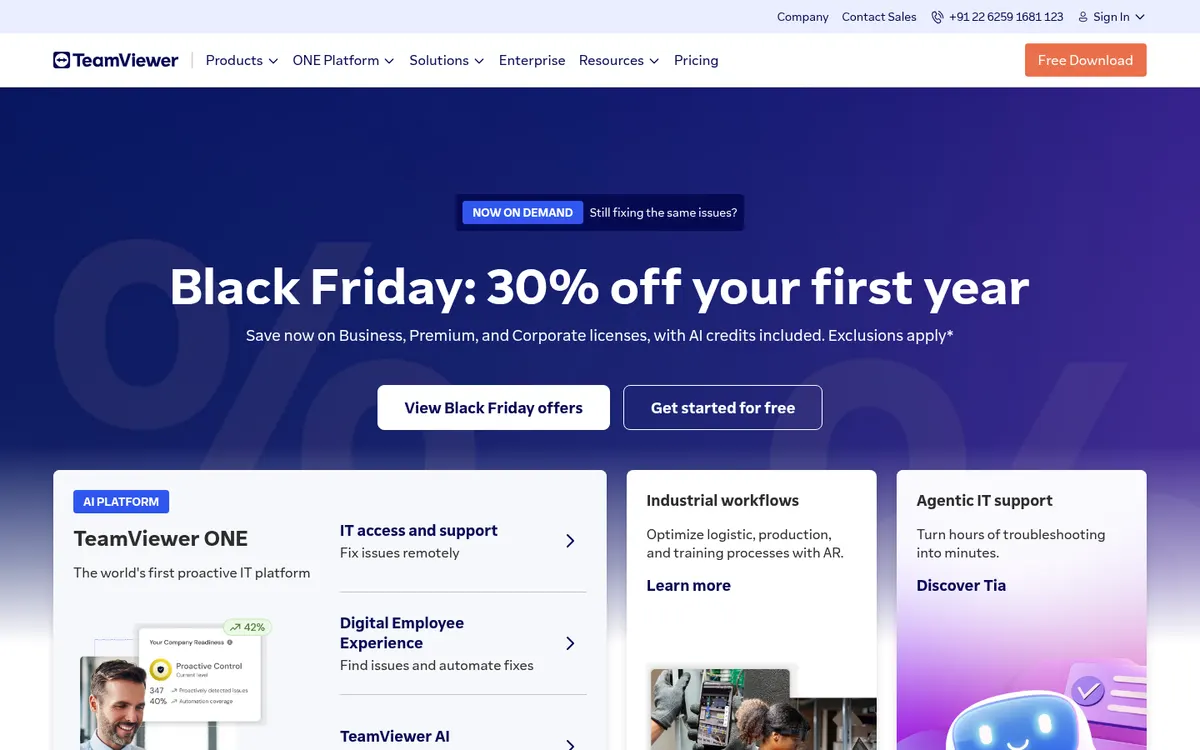
The most complete multi-monitor experience in this list, provided you can absorb the highest price in the group.
TeamViewer treats multiple displays as a first class problem rather than an afterthought. Each remote screen can open in its own window, you can switch between displays during the session, or you can collapse everything into one combined view when you need the whole desktop at a glance. Screen scaling fits a wide remote layout onto a smaller local monitor, which matters when a three screen workstation is being driven from a laptop. Around that core sits a full platform: unattended access for servers and workstations, file transfer, remote printing, session recording and meeting features, plus clients for Windows, macOS, Linux, mobile and browser based access. Connection quality adjusts to available bandwidth, so the picture degrades in steps instead of freezing. The trade off is price. Premium is listed at $60.13 per month, billed annually, excluding tax, with a Black Friday discount of 30 percent on the first year. Those promotional figures move, so confirm the current number before you budget. The free tier covers personal use and is quick to flag suspected commercial activity, which pushes business users onto a paid plan. A 30 day free trial gives you time to test your own monitor layout. It fits IT teams and businesses that need wide device coverage and dependable display handling, and it is the safest default when nobody wants to think about the software.
You need dependable per-display control across a mixed estate of desktops, servers and mobile devices.
Your budget is tight or you only need occasional access to one machine.
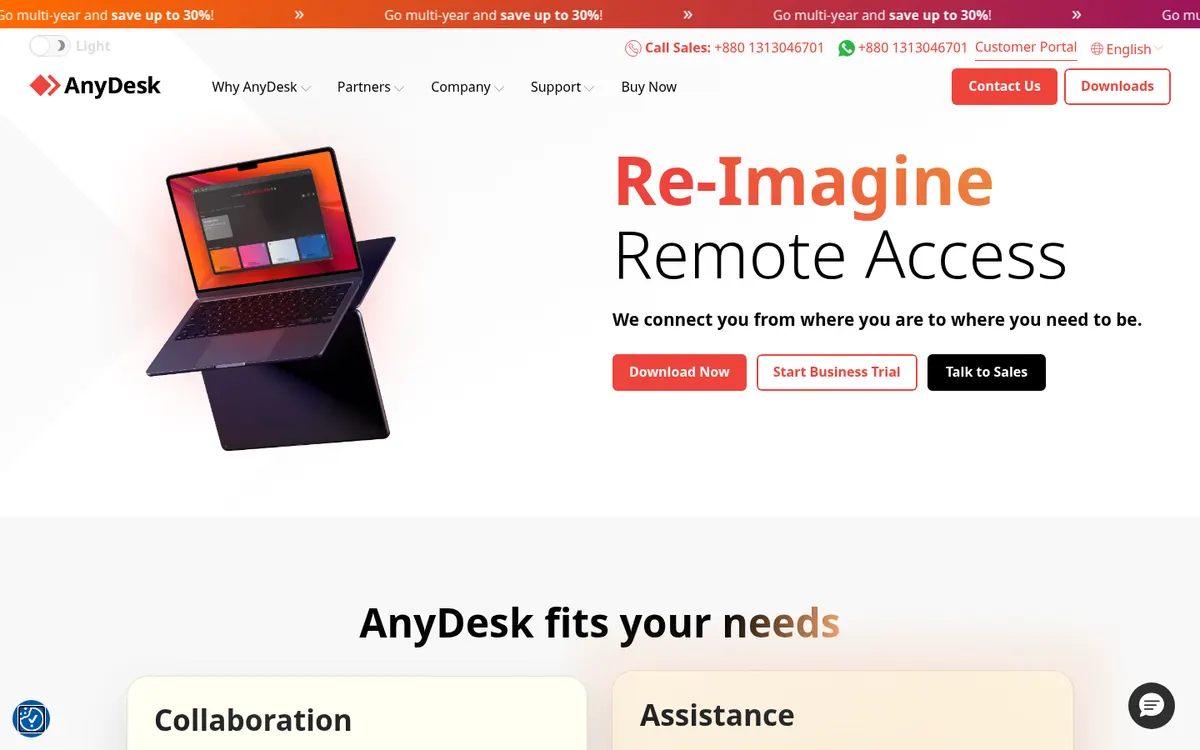
A very responsive session here, with monitor switching that stays crisp even when the connection is not.
AnyDesk sells speed, and speed is what multi-monitor sessions quietly depend on. Its proprietary codec is tuned for low latency, so cursor tracking stays tight and a second or third display repaints quickly when you flip to it. Displays can be viewed side by side or switched one at a time, and the client is small and installs quickly on a client machine. Unattended access and an address book cover routine work, file transfer and session permission controls handle the basics, and the client runs on all major platforms including Raspberry Pi, which makes it useful in workshops and labs. Pricing starts at $28.72 per month on Standard for one connection, billed annually and shown with a 20 percent discount. There is no free plan, only a free trial. Fleet management, branding and advanced security controls sit on higher tiers rather than at entry level, and the interface is functional rather than polished. If your sessions run all day across several displays over ordinary broadband, AnyDesk is the one to trial first. It fits remote workers and small support teams that prize responsiveness over management tooling, and it is less suitable for an IT department that wants inventory, patching and audits in the same console.
Responsiveness across several displays is the thing your users complain about most.
You need patch management and device inventory alongside the remote session.
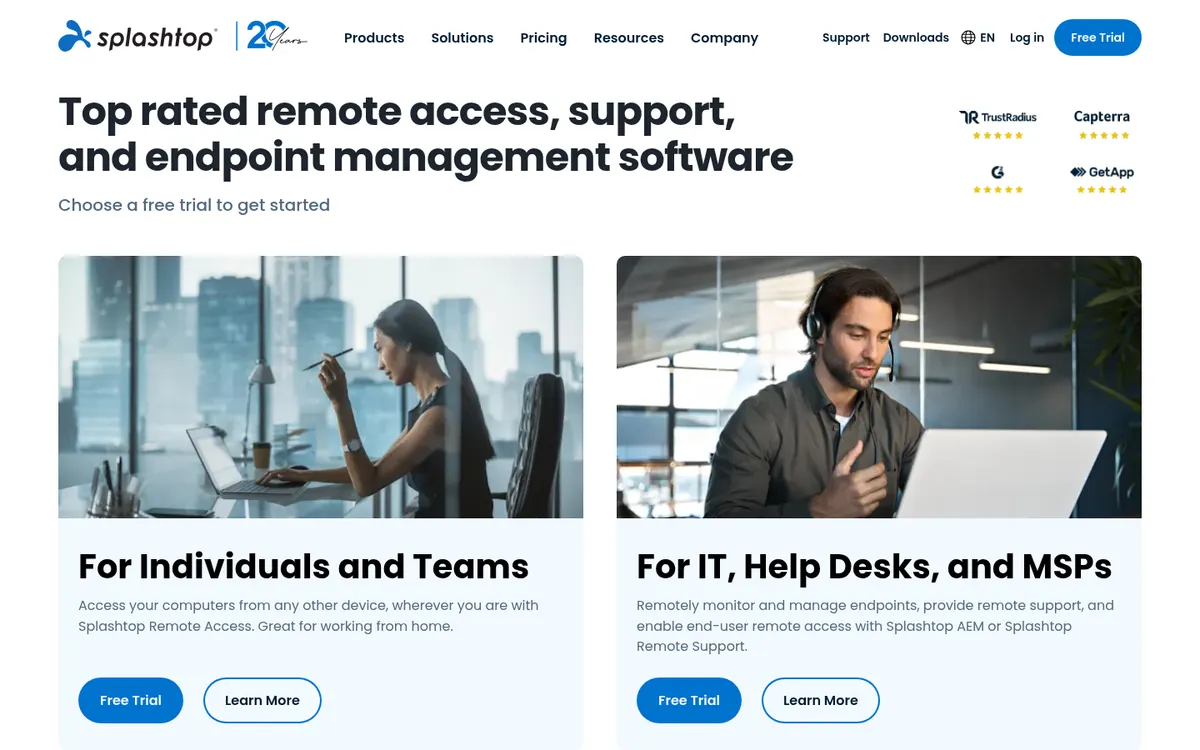
A strong pick for high-resolution multi-monitor workstations, with layout matching that removes most of the friction.
Splashtop is the strongest pick here for people who drive high-resolution multi-monitor workstations from somewhere else. It shows all remote monitors at once, matches the remote display layout to your local arrangement so windows land where you expect, and streams 4K with low latency. Switching between connected displays is quick, which matters for video editing, CAD and development sessions where the whole screen arrangement is part of the workflow.
Business tiers add SSO, audit logs, remote print and file transfer, and the security certifications are aimed squarely at an IT review rather than a hobbyist.
Pricing carries a clear entry point: Solo at $6 per month, billed annually at $72. There is no free plan, but there is a free trial. The family is split into several overlapping editions, and some features buyers assume are standard turn out to be edition specific, so map your required features to the right one before you buy.
It fits remote workers and creative or engineering teams on powerful machines, plus businesses that want corporate-grade security at a lower price than TeamViewer. It is a poor fit for buyers who want one simple price for everything, because the edition sprawl will cost you a support call before it costs you a subscription.
You run a multi-display creative or engineering workstation remotely and need every screen at once.
You want a single simple plan and no edition comparison work.
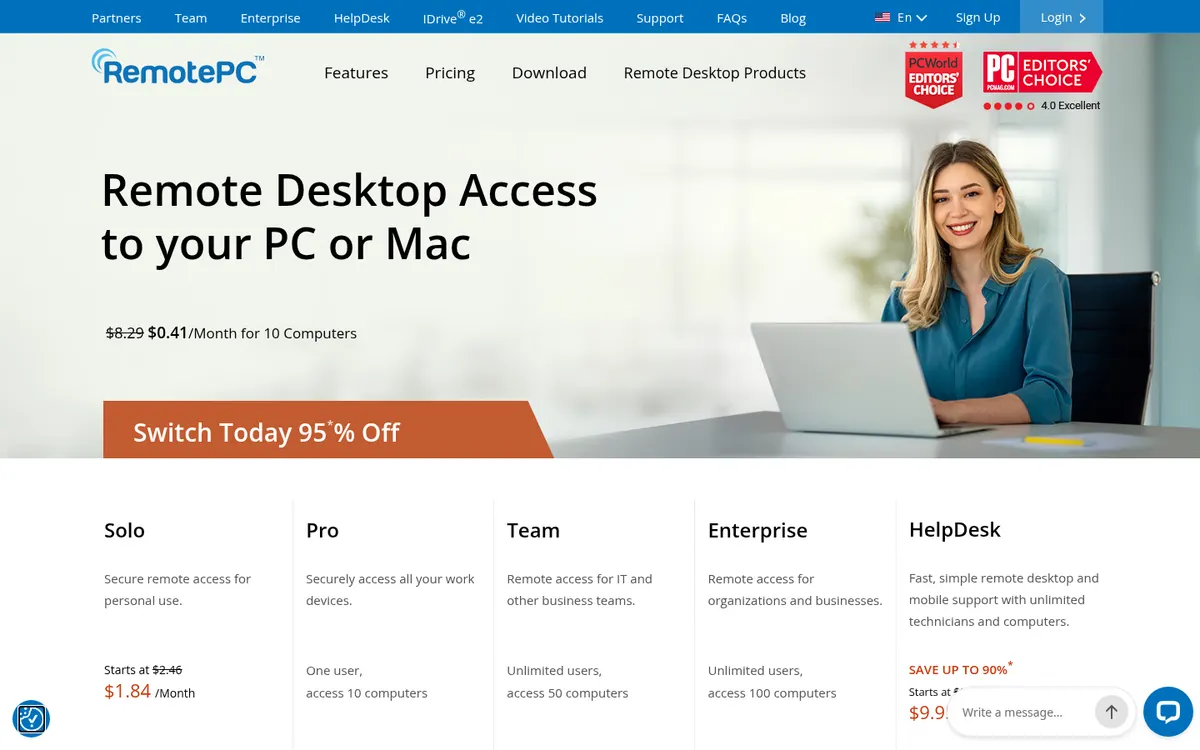
The cheapest route to always-on access across several machines, as long as basic display controls and modest speed are acceptable.
RemotePC competes on economics. The Solo plan is listed at $1.84 per month for one user and one computer when billed annually, a 25 percent saving on the monthly figure, and there is a 7 day free trial with no credit card required. That is a low paid entry price in this list, and the arithmetic gets better on plans that allow unlimited computers. The feature set is honest rather than exciting: always-on access to multiple machines, browser access without installing anything locally, file transfer, remote printing and session recording, with cloud backup bundled on some plans. Multi-monitor support exists, but the controls are basic, and display switching is not in the same class as Splashtop or TeamViewer. Performance is the real limit. Over the open internet, responsiveness trails the faster tools here, so a session with several high-resolution displays open feels workable rather than pleasant. For reaching a few office machines to check a report or restart a service, that trade is usually worth taking. It fits small businesses and sole operators who need always-on access to a handful of machines and would rather spend the money elsewhere. Skip it if your day is spent inside a remote design or video workstation, where latency compounds and every dropped frame is felt.
You need cheap always-on access to several office machines and can live with basic display switching.
You work inside high-resolution multi-monitor sessions for hours at a time.
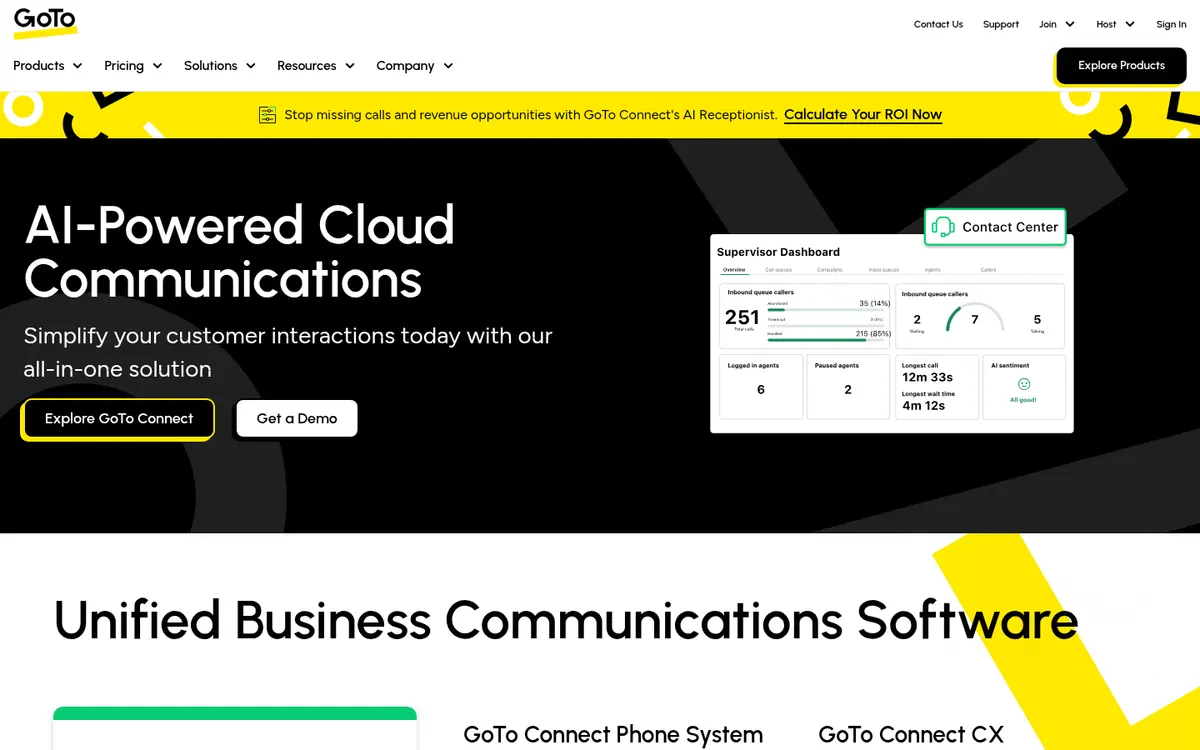
Remote control wrapped in a help desk, which is exactly right for IT teams and oversized for everyone else.
GoTo Resolve is remote support software with a help desk attached. Technicians can launch a session straight from a ticket with device health visible, then use unattended access, file transfer, device management, patching and background system tools that do not interrupt whoever is sitting at the machine. Multi-monitor remote control works for both technician and end user setups. The reason to choose it over a pure access tool is the single console: tickets, device management, patching and remote sessions in one place. The reason to hesitate is packaging. It is built and priced for IT teams rather than individuals, and some capabilities lean on the wider GoTo suite, so a small shop may end up paying for a platform it barely uses. Pricing is on the vendor site, so there is no headline number to compare here. The product comes from the company formerly known as LogMeIn, which means an established vendor behind it and documentation that has had years to mature. It fits internal help desks and support teams that want ticketing and device management next to remote control. Skip it if you just need to reach your own office desktop from home, because you will pay for workflow tooling you never open.
You run an internal help desk and want tickets, device health and remote control in one place.
You are one person reaching one computer and want a simple subscription.
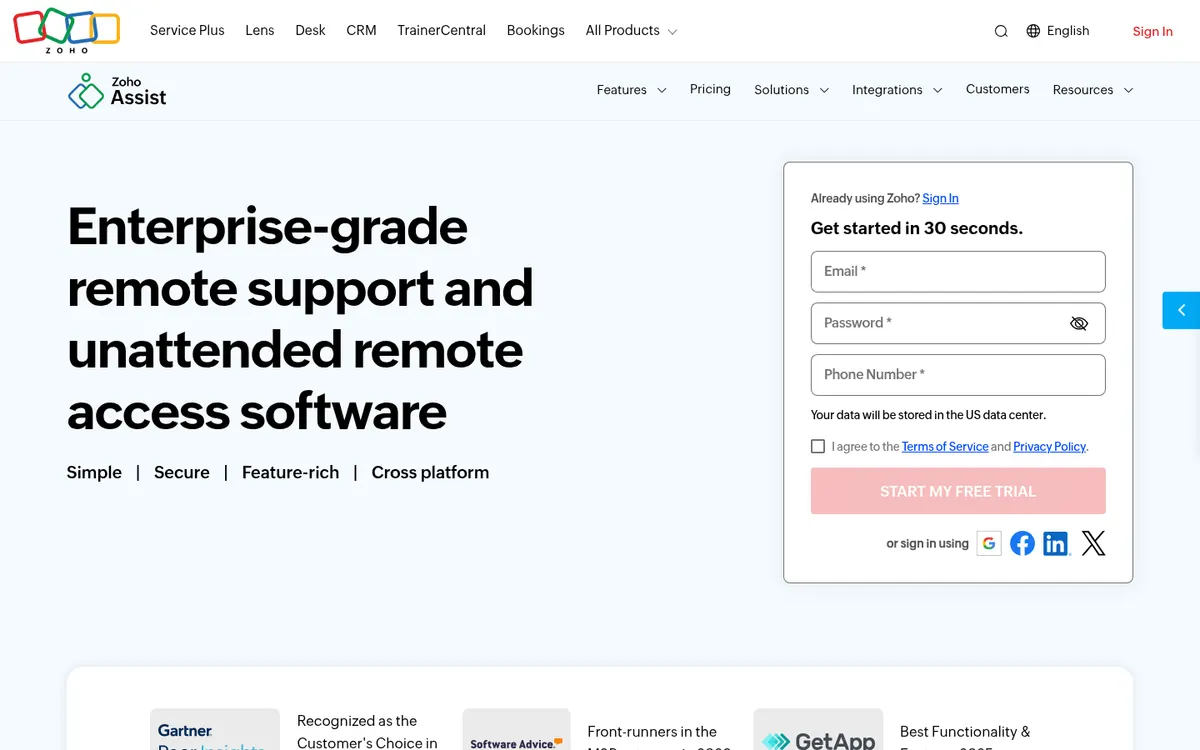
The cheapest sensible way into browser-based support, with performance that holds up for planned work rather than heavy sessions.
Zoho Assist is the cheapest sensible route to browser-based remote support. The end user installs nothing: you send a link, they click, and the session opens in a browser. That single decision removes most of the friction from ad hoc support calls, and it is why small teams gravitate to it.
The product covers the expected ground with unattended access, file transfer, session recording, reboot and automatic reconnect, multi-monitor screen handling, and an integration with Zoho Desk that ties sessions to tickets. Predictable workflows are where it feels most at home.
Pricing is straightforward: Standard is $10 per technician per month, billed annually. There is a free edition for light use and a 15 day free trial with no credit card required, so the cost of finding out whether it works is close to zero.
The limits show up in heavy sessions. On high-resolution multi-monitor desktops, performance is mid-range, and display switching works but feels less refined than the faster tools here. You are trading polish for price and zero-install convenience.
It fits small support teams, schools and businesses already living in the Zoho ecosystem. Skip it if your technicians spend the day inside several 4K displays on a remote workstation, because responsiveness will become the complaint.
You want low-cost, link-based support sessions without installing anything on user machines.
Your sessions are long, graphics-heavy and spread across three or four screens.
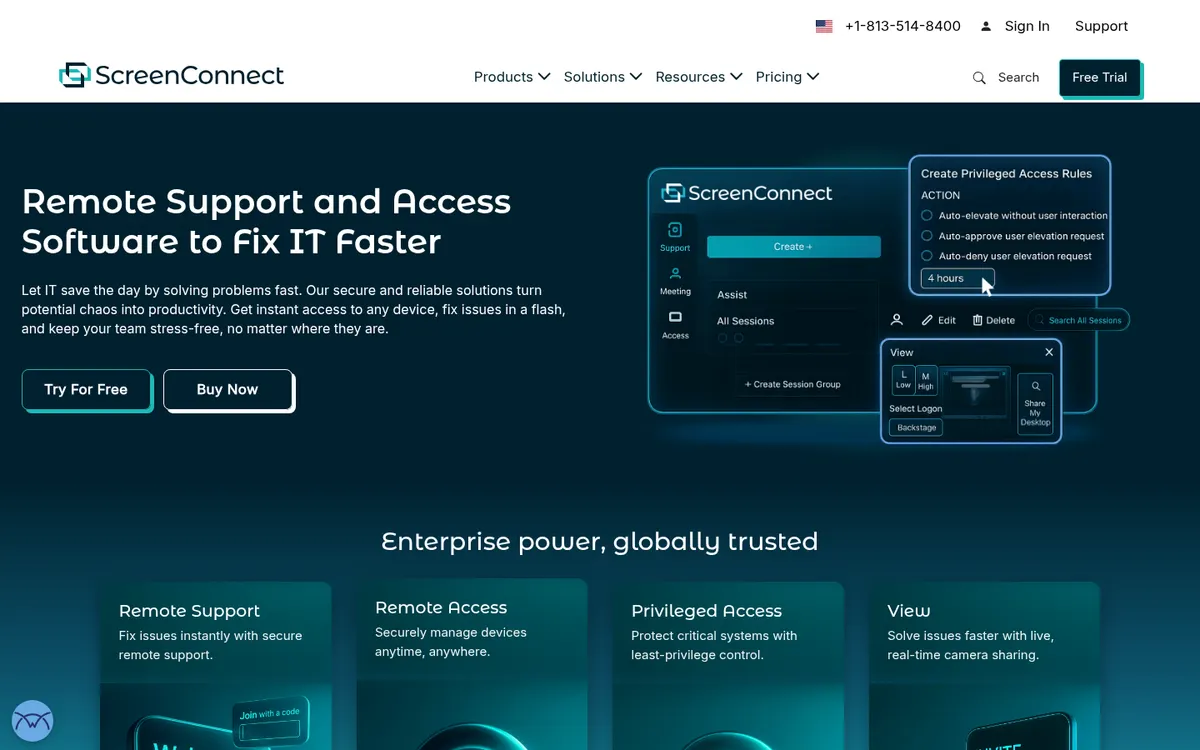
A deep technician toolkit for managed service providers, licensed per technician, with pricing on the vendor site.
ScreenConnect is a technician's tool. Remote control is fast and handles multiple monitors, sessions can run in the background without interrupting the end user, and the toolbox goes well past screen sharing: command line access, scripting, process and service management, file transfer and session auditing. Self-hosted deployment is available for teams that want the server on their own infrastructure. Licensing counts technicians rather than endpoints, which changes the cost math. A team with a small support staff and a large device estate usually finds that model generous, because licensing counts technicians rather than endpoints. A team with many part-time technicians and few devices will feel the opposite. Pricing was not published on the page checked for this review, so check the vendor site before budgeting. The interface is dated and utilitarian, and the deeper features require training before a new technician is useful, which is a real cost in a small team. It fits managed service providers and internal support desks doing serious remote troubleshooting across a big fleet. Skip it for basic remote access to your own computer, where the toolkit is overkill and the learning curve buys you nothing.
You are an MSP with a small bench of technicians supporting a large device fleet.
You want a polished interface and a self-serve price you can read today.
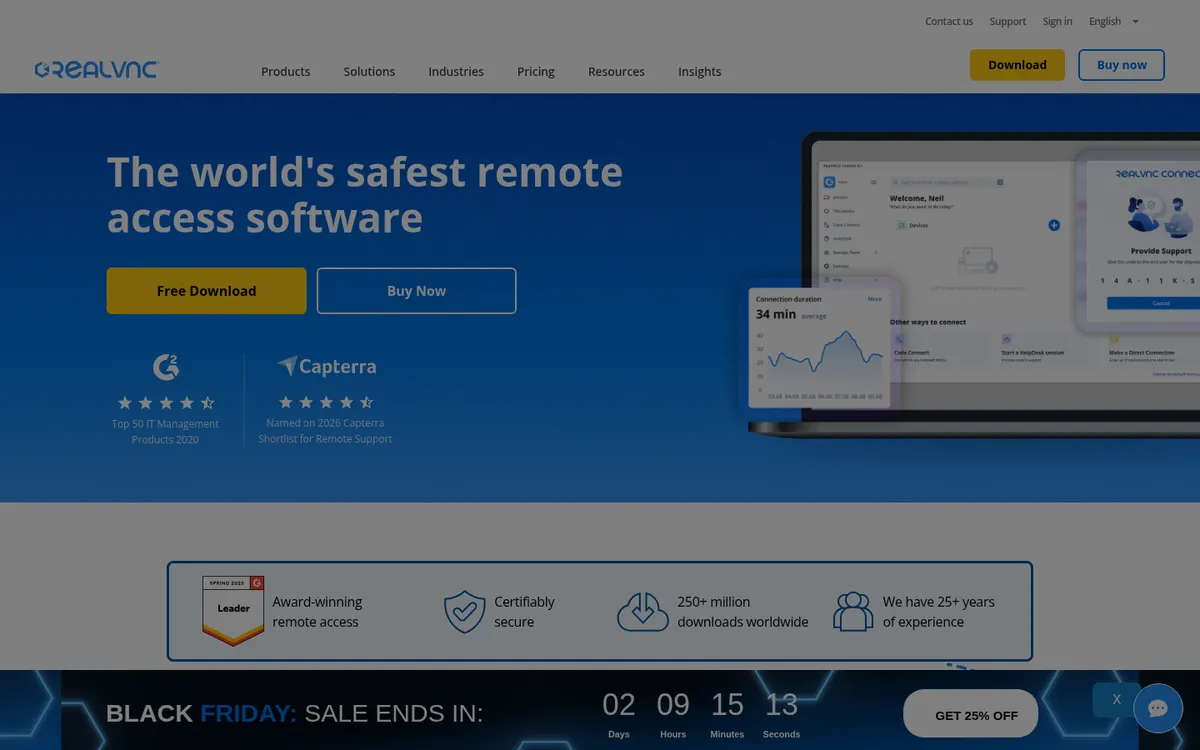
Lightweight, widely compatible VNC access for labs and embedded devices, with display handling that stays deliberately basic.
RealVNC is the commercial build of the original VNC protocol, and that heritage is the whole pitch. It views and switches between remote displays, and it interoperates with other VNC viewers and servers, which matters in labs and embedded environments where a mixed bag of VNC software is already installed. It runs on Windows, macOS, Linux and Raspberry Pi with modest system requirements and a small footprint, so it behaves on hardware that would struggle with a heavier client. Licensing is simple. Pricing starts at $8.75 per month on Essentials for one active connection and three devices, billed annually. There is no free plan, and there is a 7 day free trial. Multi-monitor handling is basic: you get display switching, not the layout matching or per-display window management that Splashtop and TeamViewer provide. There is also no ticketing, no device management and no support toolkit, because this is a focused remote desktop tool rather than an IT platform. It fits technical users, labs and embedded systems that want protocol universality with commercial backing. Skip it if your remote sessions involve three or four displays and you expect them arranged intelligently, or if you need auditing and workflow features around the session itself.
You need protocol-level compatibility across mixed hardware, including Raspberry Pi and embedded devices.
Your work demands layout matching and per-display window control across several screens.
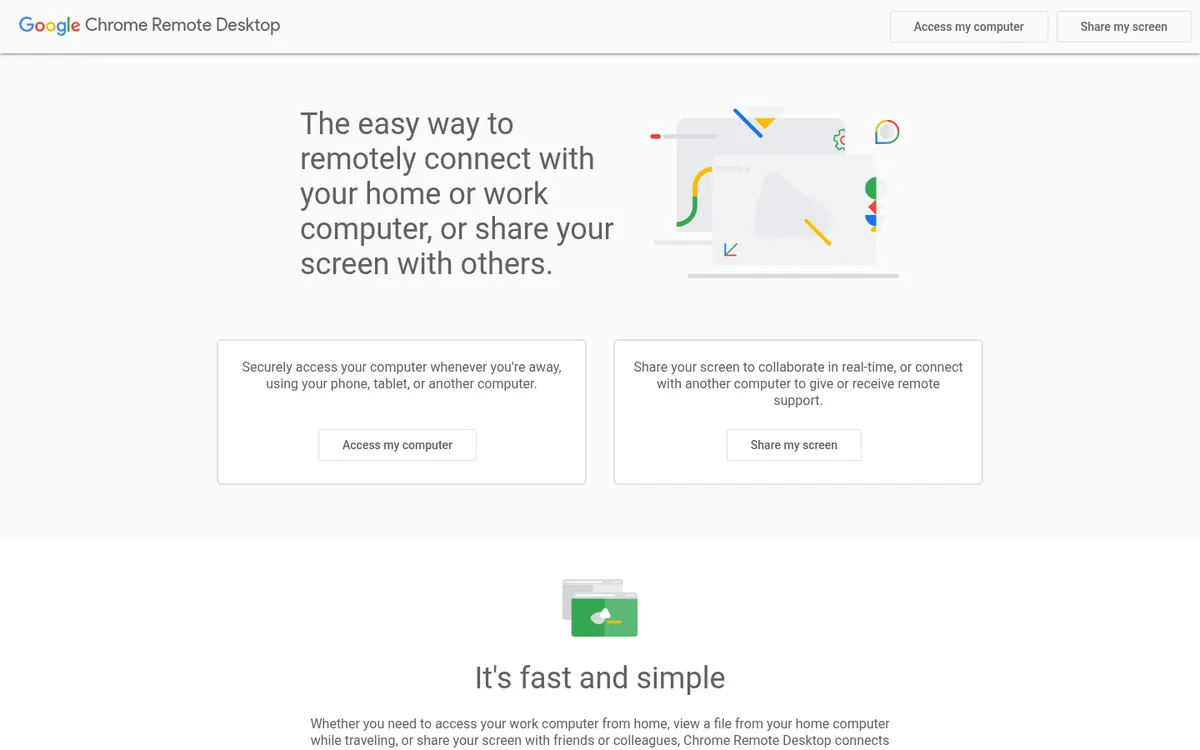
Free and fast to set up, but the multi-monitor support is a convenience rather than a workflow.
Chrome Remote Desktop is the free option, and it behaves accordingly. You install a browser extension on the host, set a PIN, and connect from any Chrome browser or the mobile app. Remote control, clipboard sharing and basic multi-monitor viewing are there. Setup takes minutes and there are no accounts, licences or configuration to manage. You will not find a price on the vendor site because there is no paid tier: the product is free for personal and commercial use, with no trial needed. That is the entire commercial story, and for occasional access to your own machine it is genuinely enough. The feature list stops early. Multi-monitor support is rudimentary, there is no real session management or IT workflow tooling, traditional file transfer is missing, and unattended access controls are thin compared with anything else on this list. It fits individuals reaching a home or office computer now and then, and small teams that need an occasional lifeline without a purchase order. Skip it for a support desk, a fleet of machines or any session involving several high-resolution displays, because the tool was never designed for that workload.
You want free, occasional access to your own computer and nothing more.
You support other people, manage a fleet, or work across several displays.
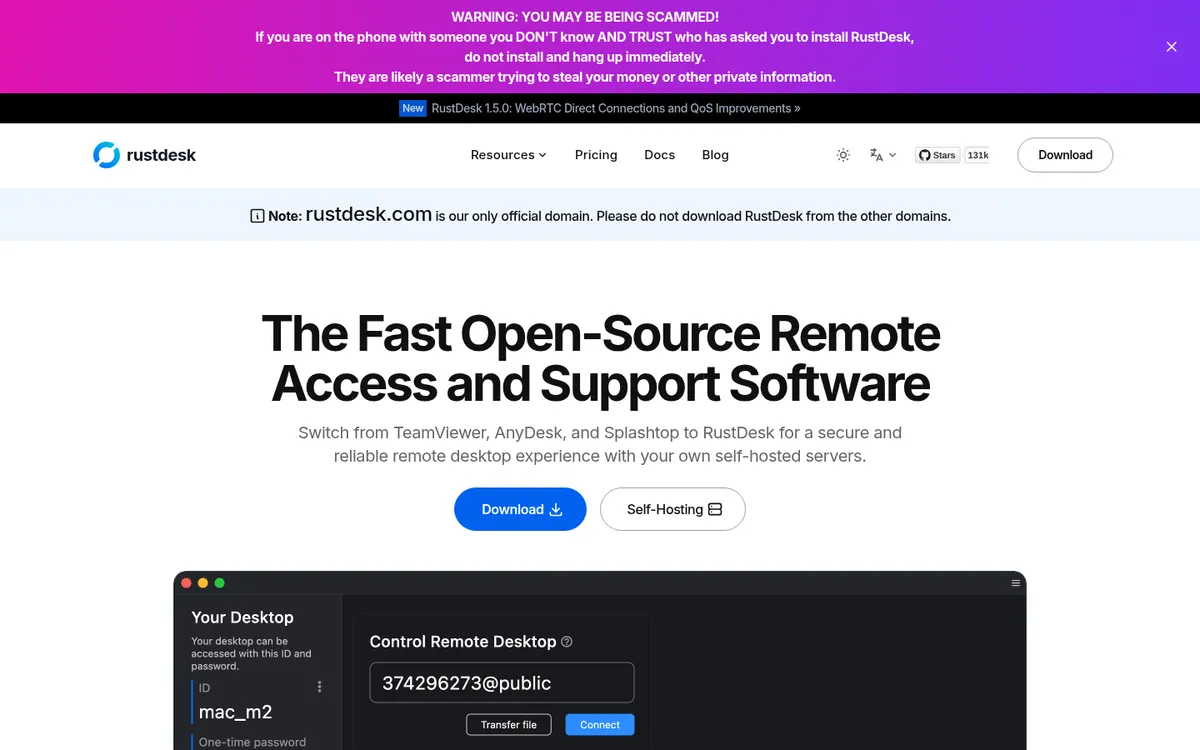
Open-source access with a self-hosted relay, trading vendor support and management tooling for control and no licence fee.
RustDesk is the open-source answer to remote access, and the self-hosted relay is the reason to care. Session traffic stays on your own server instead of routing through a vendor, which is the deciding factor for privacy-sensitive organizations that cannot send screen data through a third party. The client covers the practical ground: multi-monitor display switching, file transfer, in-session chat and unattended access, with clients for Windows, macOS, Linux, Android and iOS. Performance and monitor handling are respectable. The free self-hosting plan carries no licensing cost, and paid Pro plans start at $11.88 per month billed annually. There is no self-serve trial for the commercial tier; you contact sales. The cost arrives as labor. Setting up a relay server needs real technical skill, and once it is running you rely on community support rather than a vendor service level agreement. Management consoles and audit features that commercial suites bundle are absent, so compliance work is on you. It fits privacy-sensitive teams and technical shops that want control of their own infrastructure. Skip it if you need a support contract, a management dashboard, or a setup a non-technical colleague can complete alone.
You have the technical staff to run a relay server and cannot send screen data to a third party.
You need a support contract, a dashboard, or a setup that takes an afternoon.
Multi-monitor support is not one feature, it is a set of behaviors that decide whether a remote session feels like sitting at the machine or like watching it through a straw. At minimum, the software has to enumerate the remote displays, transmit each one, and give you a way to move between them. The good tools add choices about how that happens.
Three display modes cover most of it. Separate windows place each remote screen in its own local window, so a two monitor remote machine maps onto your two local monitors. Switching keeps one screen visible at a time and flips between displays from a toolbar, which saves bandwidth. Combined view stitches everything into one wide desktop, which is useful on a single large local display and awkward everywhere else.
Above those modes sit refinements that separate the leaders from the budget tools: matching the remote layout to your local arrangement, scaling a wide desktop down to a laptop panel without destroying text legibility, and repainting a display quickly when you switch back to it.
Then there is latency. Each additional high-resolution display multiplies the pixels that must be encoded, sent and decoded, and the bottleneck is usually your upload speed at home rather than the remote connection. A tool with a good codec hides this better than one without.
What to check before buying:
Get those right and the rest of the feature list matters much less.
This comparison sits on the Software desk. Readers comparing neighbouring stacks often check our guides to demand forecasting software and glp 1 companies next.
Pricing in this category follows a handful of recognizable models, and the model matters more than the headline number because it decides what happens when your team grows or your device count doubles.
Per technician billing charges for the people who run sessions. It suits help desks where a few technicians touch hundreds of machines, and adding endpoints costs nothing extra. Per connection billing charges for concurrent sessions instead, which fits individuals and small teams but climbs as simultaneous sessions pile up. Per device plans work for always-on access to fixed office machines. Open source flips the equation: no licence fee, but you supply the server, the setup time and the support.
Every figure below was checked on 2026-11-26 and is quoted in the currency and billing term the vendor published, including any discount shown that day. Promotional pricing, Black Friday included, changes quickly, so treat this as a snapshot rather than a contract.
| Model | How it bills | Typical fit | Example from this list |
|---|---|---|---|
| Per technician | Monthly or annual subscription per support seat | Help desks and managed service providers | Zoho Assist Standard at $10 per technician per month billed annually |
| Per connection | Annual subscription priced by concurrent sessions | Individuals and small teams | AnyDesk Standard at $28.72 per month for 1 connection billed annually |
| Per device | Annual subscription with a device allowance | Always-on access to fixed machines | RealVNC Essentials at $8.75 per month for 1 connection and 3 devices billed annually |
| Free or open source | No licence fee, optional paid tiers | Privacy-sensitive or budget-limited teams | RustDesk free self-hosting, Pro from $11.88 per month billed annually |
| Quoted by vendor | Custom quote after contacting sales | IT teams buying bundled management | GoTo Resolve and ScreenConnect, pricing on the vendor site |
The cheapest sticker price is rarely the cheapest outcome. A per connection plan that forces extra sessions in a busy month can cost more than a per technician plan that looked expensive on day one.
Every price above was checked on the vendor's own pricing page on November 25, 2026. Where a vendor does not publish a figure we write "See website" instead of guessing. To compare annual and monthly billing quickly, try the free percentage calculator.
Count your displays and their resolution. Three 4K screens on a remote workstation is a different requirement from two 1080p monitors on an office PC. Write down resolution and refresh rate before you compare anything, because they drive encoding load and bandwidth.
Decide how sessions start. Ad hoc support needs link based, no-install access such as Zoho Assist. Always-on access to your own machines needs unattended access and an address book, which every paid tool here includes.
Test latency on your own network. Use the trial: TeamViewer gives 30 days, Zoho Assist 15, RemotePC and RealVNC 7. Open every display at once during a busy hour and watch cursor tracking rather than a demo video.
Match the billing model to how you grow. A small support bench over many devices favors per technician licensing. An individual or small team with a few concurrent sessions favors per connection or per device pricing.
Check the security and management features you will actually use. SSO, audit logs, session recording, permission controls and self-hosting all sit at different tiers. Confirm which ones are included at the price you are considering before you commit to an annual term.
Testing on a fast office connection. Vendor demos and head office networks hide latency. Trial the tool from the home broadband your users actually have, at the hour they actually work, with all displays open.
Assuming the entry tier supports every display. Multi-monitor behavior and security controls differ by tier. Map each required feature to the specific plan you are buying rather than to the product page as a whole.
Buying per connection when your team is the variable. Session limits are fine until three people need to work at once. Count peak concurrent sessions, not average ones, before choosing a billing model.
Trusting a free tier for business use. TeamViewer's free tier covers personal use and flags suspected commercial activity, and Chrome Remote Desktop omits file transfer and proper unattended access controls. Budget for a paid plan from the start.
Ignoring upload speed at the host end. Download speed is not the constraint. Several high-resolution displays strain the upload link where the machine sits, so check that connection before blaming the software.
Splashtop and TeamViewer are strong options for multi-monitor work in this list. Splashtop shows all remote monitors at once, matches the remote layout to your local arrangement and streams 4K with low latency. TeamViewer offers per-display windows, switching and a combined view, with scaling that keeps a wide desktop usable on a laptop.
Yes. Chrome Remote Desktop is free with basic multi-monitor viewing, RustDesk is free to self-host with display switching, and Zoho Assist has a free edition for light use. TeamViewer's free tier covers personal use only and flags suspected commercial activity, so businesses should plan on a paid plan.
More than most people budget for, and the host's upload speed is usually the bottleneck rather than download. Each additional high-resolution display multiplies the pixels that must be encoded and sent. Tools with efficient codecs, such as AnyDesk and Splashtop, cope better on thin connections, but the only reliable answer is testing your own layout during a trial.
GoTo Resolve bundles ticketing, device management and patching with remote sessions in one console, which suits internal help desks. Zoho Assist integrates with Zoho Desk so sessions attach to tickets. ScreenConnect adds session auditing and scripting depth for managed service providers. Pricing for GoTo Resolve and ScreenConnect is on the vendor site.
Look for SSO, audit logs, session recording, granular permission controls and the ability to revoke access quickly. Regulated organizations should consider self-hosted options, since RustDesk and ScreenConnect can keep session traffic on your own infrastructure. Check which controls sit on the entry tier, because vendors often reserve them for higher plans.
Because remote desktop performance is decided by your connection, not the vendor's demo. Trials are free and short: TeamViewer gives 30 days, Zoho Assist 15, RemotePC and RealVNC 7. Open every display you normally use, at the busiest hour, and judge cursor tracking and window redraw before committing to an annual term.
Browse every comparison on the Software desk, with the same rubric and dated prices.